Desktop app
Capture any call. No bot joins.
The desktop app listens through your microphone and your computer's sound, so it hears everyone in Zoom, Teams, Google Meet or any other call app. When the meeting ends, the write-up is waiting.
Also for: Mac (Intel) · Windows

What the desktop app does.
Zoom, Teams, Google Meet, Webex, Slack
Any call, no bot
Nothing joins the call and nobody has to let a bot in. It works with any meeting app, and with calls in your browser.
In the room
The meeting room too
Put the laptop on the table and start it yourself. In a hybrid meeting, it hears the room and the people on the call as one meeting.
When the meeting ends
The write-up, waiting
Finalize the meeting and Jurnie writes the summary and the follow-up in your format.
It asks before it starts.
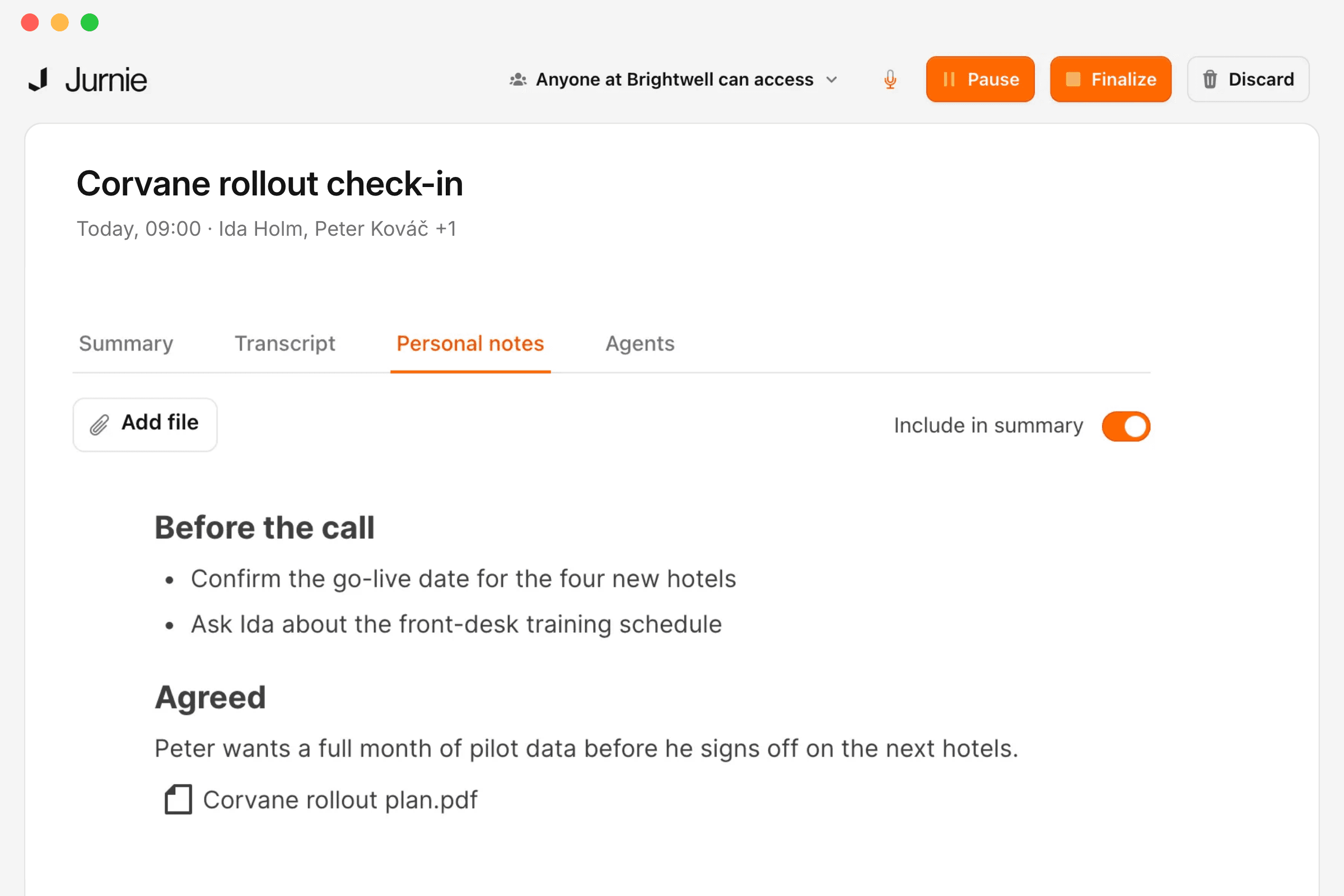
When a call starts using your microphone, Jurnie asks whether you want notes. It never starts on its own, and a small badge shows while it's capturing.
System requirements.
- Mac
- macOS 14 or later, on Apple silicon or Intel.
- Windows
- Installs for your Windows user only, so you don't need administrator rights.
- Account
- A Jurnie account. Start a free trial, or sign in with Google, Microsoft or your email.
Questions about the desktop app.
Does anyone in the call see Jurnie?
No. Nothing joins the call. Tell the people in the meeting that you're capturing it, the way you would if you took notes.
What if I wear headphones?
Jurnie takes the call's sound from your computer, so it hears everyone even when you wear headphones.
How long can a meeting be?
Up to four hours. For a full-day workshop, finalize and start a new meeting before then.
How does it stay up to date?
When a new version is out, a button to update appears at the top of the app.
Where can I get help installing it?
The help center walks through installing the desktop app, including the permissions macOS asks for.