No articles match “”.
Try fewer or different words.
Browse topics
Install the desktop app
Download Jurnie for Mac or Windows, sign in through your browser, and allow the microphone and system audio so Jurnie can capture meetings without a bot.
The desktop app captures online meetings on your computer, using your microphone and the sound of the call, so no bot joins. It works with any meeting app, on macOS 14 or later (Apple silicon and Intel) and on Windows.
Download and install
- Go to jurnie.ai/download-desktop. The download for your computer starts on its own; if it doesn't, pick your system from the links there. In the web app, you can also click Download desktop app at the top of the screen.
- Install it:
- Mac: open the Jurnie .dmg file from your Downloads folder, drag Jurnie into your Applications folder, then open it from there.
- Windows: run the installer, follow the steps, then open Jurnie from the Start menu. It installs for your Windows user only, so you don't need administrator rights.
Sign in
You need a Jurnie account first. See Set up Jurnie.
- In the app, click Sign In with Browser. Your browser opens.
- Sign in there with Google, Microsoft or your email and password.
- The page says Desktop App Authorized! and switches you back to the app, now signed in. If your browser asks to open Jurnie, allow it. If nothing happens, click Open desktop app.
If signing in doesn't finish, see Can't sign in.
Allow the microphone and system audio (Mac)
After you sign in on a Mac, the Jurnie Setup guide asks for two permissions in turn. Allow each when macOS asks (for the second, macOS may send you to System Settings):
- Enable microphone access, so Jurnie hears you.
- Enable screen & system audio access, so Jurnie can capture everyone else in the call, even when you wear headphones. System Settings calls it Screen & System Audio Recording (Screen Recording on macOS 14). Jurnie uses it to get the call's sound.
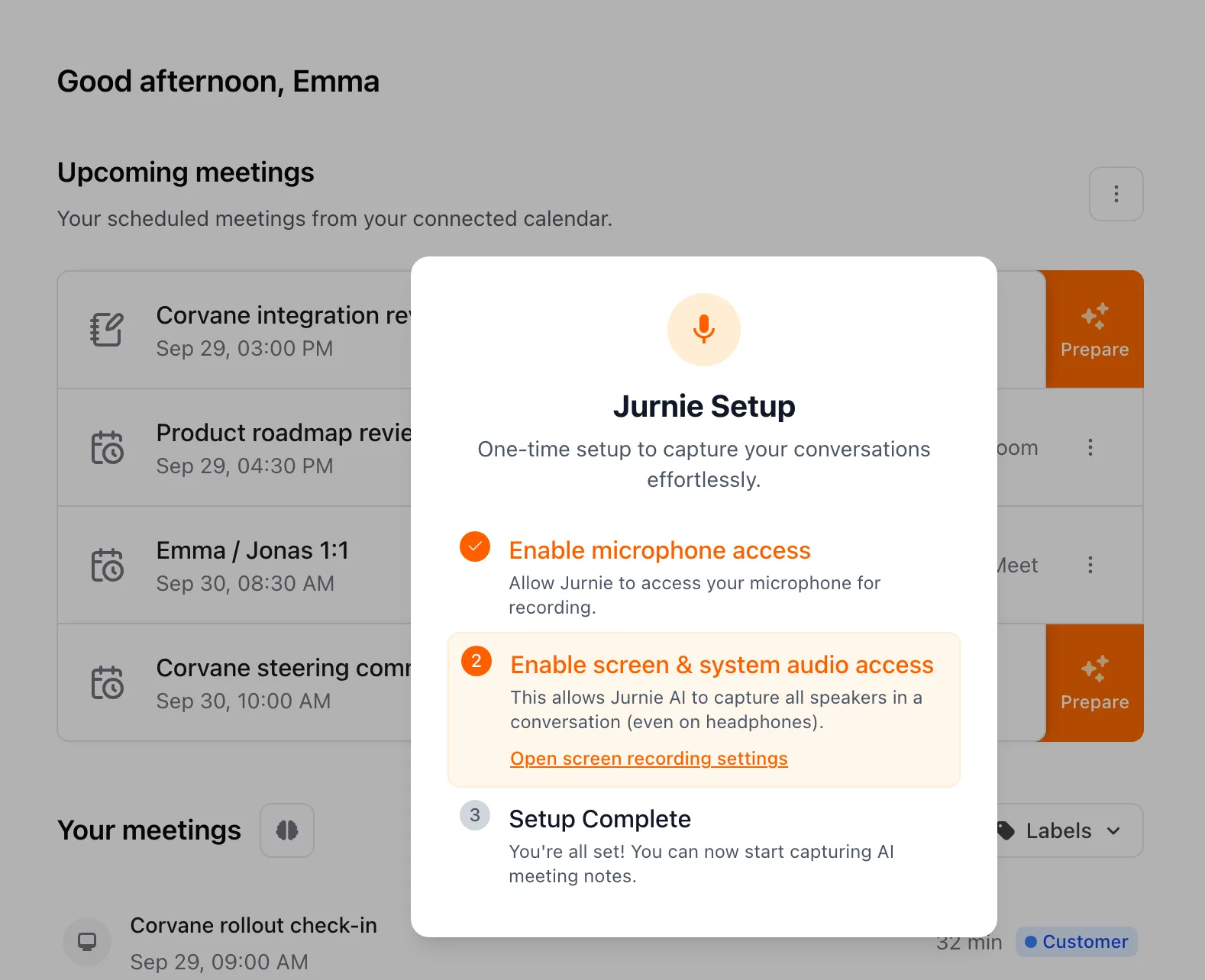
If you clicked Don't Allow, use Open microphone settings or Open screen recording settings in the guide, switch Jurnie on under Privacy & Security, then quit and reopen Jurnie.
Windows doesn't need this step.
What happens next
- After your first sign-in, Jurnie opens on its own when you log in to your computer.
- When another app starts using your microphone, as a call does, Jurnie shows a notification so you can start taking notes. See Capture an online meeting.
- Closing the window doesn't quit Jurnie: it keeps running so it can notice your meetings. To quit, right-click the Jurnie icon in the menu bar (Mac) or the system tray (Windows), choose Quit Completely, then Quit.
To change this, go to Settings → Preferences → Jurnie Desktop Settings:
- Open Jurnie when you log in
- Show meeting indicator: shows an indicator on your screen while Jurnie is taking notes.
- Auto-detect meetings: the notification when a call is detected.
Tip: When a new version is out, an Update Jurnie button appears at the top of the app. See Update the desktop app.
Last updated October 3, 2026