No articles match “”.
Try fewer or different words.
Browse topics
Your account settings
Change your name, which emails you get, the language of your summaries, your default template and automatic sharing.
Your personal settings are on the Account tab in Settings. They change things for you only. Settings for the whole organization are on the Organization tab, which only admins see.
To open them, click your name at the bottom of the sidebar, then Settings. In a narrow window, the same menu is behind your avatar at the top right.
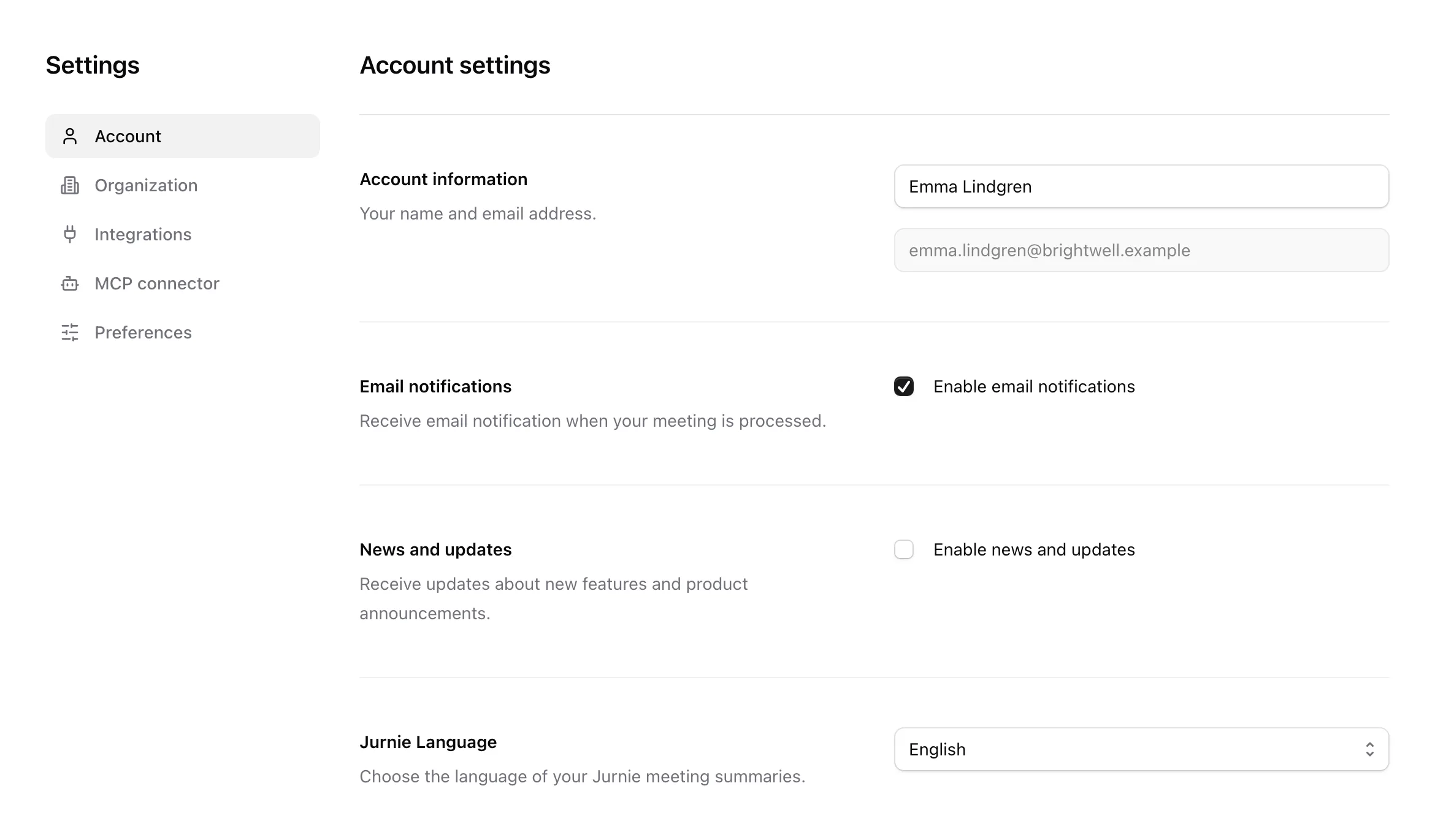
What you can change
- Account information: your name. Your email address is shown but can't be changed here. If it needs to change, email support@jurnie.ai from your current address. We'll confirm the change with you, and with an admin of your organization, before making it.
- Email notifications: emails when a meeting of yours has been processed or couldn't be processed, and when an agent finishes on one of your meetings. Turning this off stops these emails. Each agent also has its own switch, Email me when this agent finishes. Emails telling you someone shared a meeting with you still arrive.
- News and updates: emails about new features and product announcements.
- Jurnie Language: the language Jurnie writes your meeting summaries in. See Languages in Jurnie.
- Default summary template: your own default template for meeting summaries. It takes priority over your organization's default. Choose No default template to use the organization's. See Summary templates.
- Share meetings with a teamspace: Jurnie shares each new meeting you capture or upload with the teamspace you pick, once the meeting has been processed. Don't share automatically turns this off. This section only appears when your organization uses teamspaces. See Teamspaces.
Click Save changes when you're done. Reset throws away changes you haven't saved yet.
Tip: Ask Jurnie can also change your Jurnie Language, your default summary template and your email switches for you. It shows you the change and waits for your approval first. It can't change your name or teamspace sharing. See Let Ask Jurnie make changes for you.
The other tabs
- Integrations: your calendar and other tools. See Connect your calendar.
- MCP connector: connect Claude, ChatGPT or another AI assistant. See Use Jurnie from Claude, ChatGPT and other AI tools.
- Preferences: the app's language and color theme. In the desktop app, this tab also has the desktop settings.
- API keys: only shown when your organization allows API access. See The Jurnie API.
Change your password
Settings has no password field. To change your password, sign out, click Forgot password? on the sign-in page and follow the link in the email. If you sign in with Google or Microsoft, you don't need a password. See Can't sign in.
In the Jurnie mobile app, open Profile and tap Change password. You need your current password for this.
Last updated October 3, 2026