No articles match “”.
Try fewer or different words.
Browse topics
How summaries work
What Jurnie uses to write a meeting summary, which language it's in, and how to refresh or copy it.
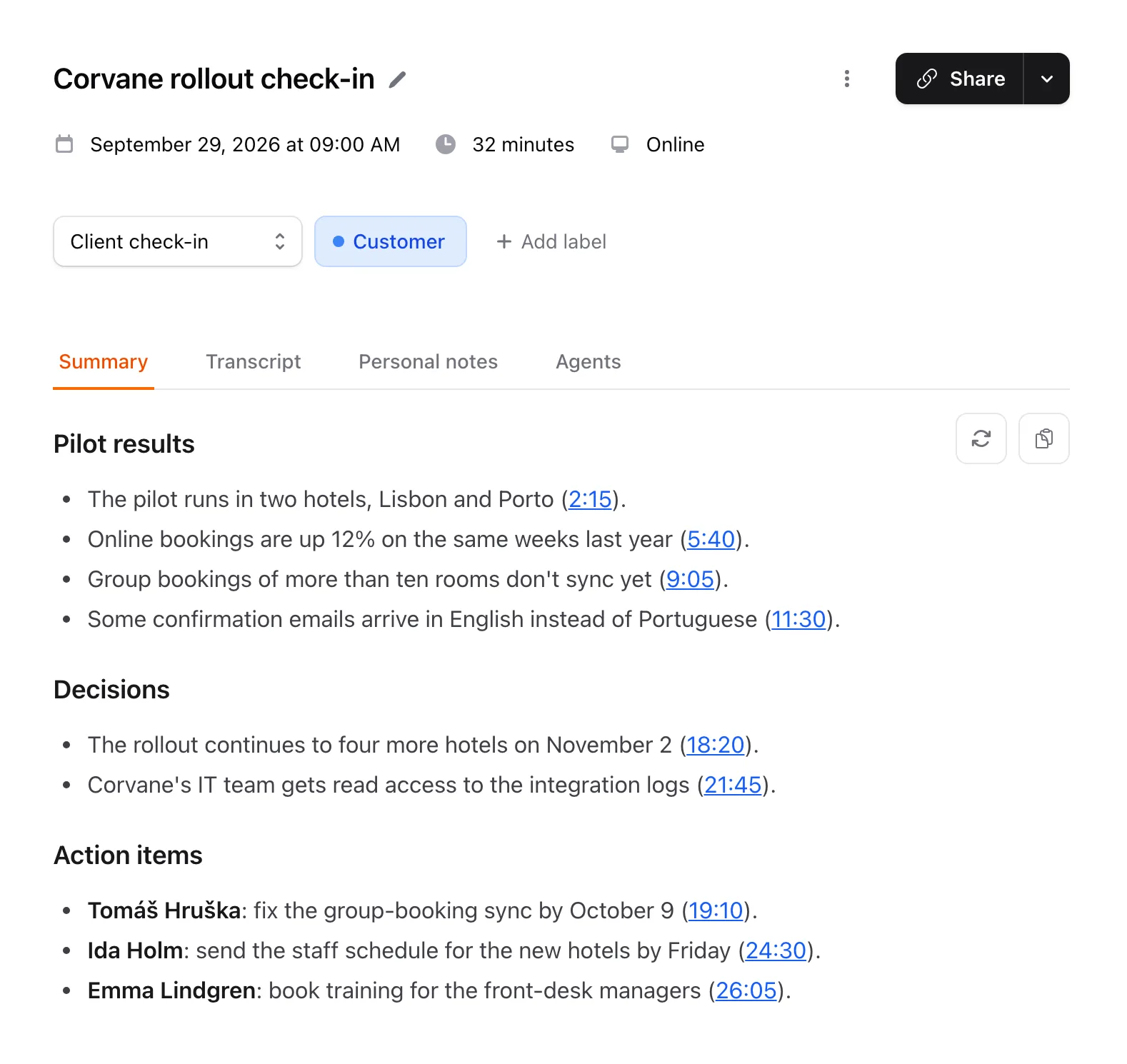
Once a meeting has been processed, Jurnie writes a summary on the meeting's Summary tab. It sticks to what's in the meeting: if the transcript is too short or unclear to summarize, you'll see Summary could not be generated rather than a guess.
Jurnie emails the meeting's owner when the meeting has been processed, unless they've turned off Email notifications in Settings → Account.
What Jurnie uses
Besides the transcript, the summary draws on:
- The calendar invite's description, if the meeting has one.
- Your personal notes, if you own the meeting and Include in summary is on (the default) on the Personal notes tab. Where your notes and the transcript disagree, the notes win, and points that come only from your notes are marked "(from notes)". See Personal notes.
- A summary template, if the meeting has one. Without a template, Jurnie organizes the notes around what was discussed. See Summary templates.
- The names of the people involved: who was invited (unless they declined), and the people, companies and projects from your organization's memory that the transcript mentions.
Admins: Settings → Organization → Custom AI Instructions gives Jurnie extra instructions for the summaries and answers it writes for everyone in your organization.
Which language it's written in
The summary is written in the meeting owner's Jurnie Language (Settings → Account), whatever language was spoken. A template's section titles are translated too. When someone else refreshes the summary or changes its template, the new summary is written in their Jurnie Language. See Languages in Jurnie.
Timestamps and names
Timestamps in the summary link to the transcript. Click one to open the Transcript tab at that moment. When memory is on, the names of people, companies, projects and topics Jurnie remembers are links too: hover for a short card, click to open their page. See How Jurnie remembers.
Refresh a summary
Click Refresh summary (the circular-arrow button at the top right of the summary) to write it again from the current transcript, notes and template. The new summary replaces the old one.
Jurnie doesn't rewrite a summary on its own when something changes. If you rename a speaker, or the owner edits notes that are included in the summary or turns Include in summary on or off, a bar at the bottom of the summary says This summary may be out of date. Click Regenerate to refresh it, or Dismiss to keep the summary as it is.
Copy a summary
Click Copy (the clipboard button next to Refresh summary). The summary is copied with its headings and lists, so it keeps its formatting when you paste it into an email or a document. Timestamps are left out.
Note: Refreshing summaries needs an active subscription. While your organization's subscription is inactive, Refresh summary and the out-of-date bar are hidden.
Last updated October 3, 2026