No articles match “”.
Try fewer or different words.
Browse topics
Create a meeting from an audio file
Upload an audio file of a meeting, and Jurnie transcribes it and writes a summary, like any other meeting.
If a meeting was captured some other way, upload its audio file. Jurnie turns it into a new meeting with a transcript and a summary, just like a meeting it captured itself.
Upload a file
- Click the upload button, a cloud with an arrow, at the top of the Jurnie window. It's there on the web and in the desktop app.
- In Upload audio file, drag the file onto the window or click to browse. In the desktop app, click Browse files.
- Check the file name and size, then click Upload.
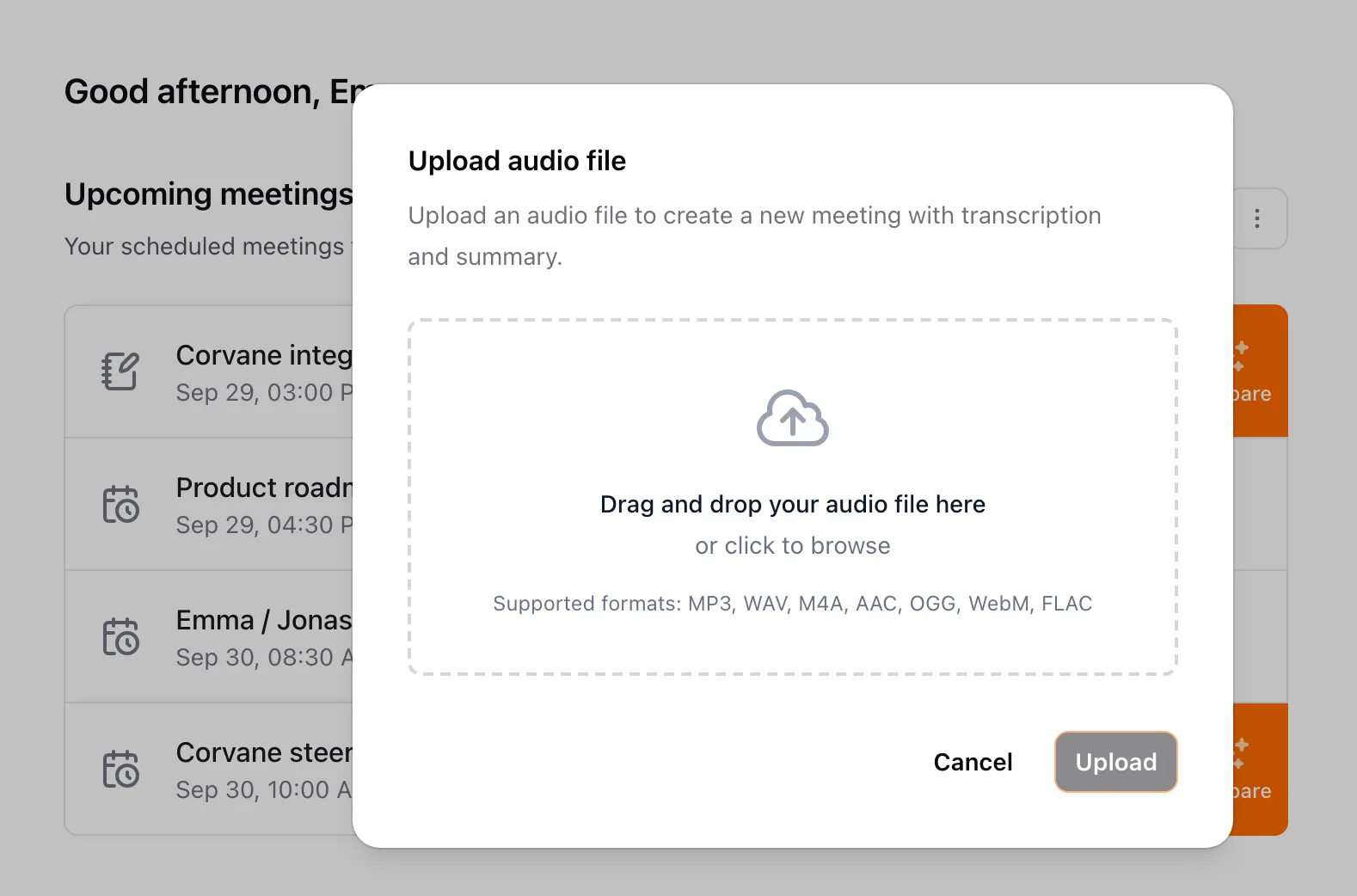
Keep Jurnie open until the upload finishes. A progress bar shows how far it has got. When it's done, Jurnie says "Your audio file has been uploaded and processing has started."
Which files work
Common audio formats such as MP3, M4A or WAV, one file per meeting.
Uploading needs an active subscription. Without one, the upload button can't be clicked. See Subscription and billing.
What happens next
- The meeting appears under Your meetings, named after the file:
corvane-kickoff.m4abecomes "corvane-kickoff". It shows Processing until the transcript and summary are ready. To rename it, see Rename, delete or download a meeting. - The summary uses your default summary template if you've set one, otherwise your organization's. See Summary templates.
- If you share your meetings with a teamspace automatically, uploaded meetings are shared there too. See Teamspaces.
- An uploaded meeting isn't linked to a calendar event, so it doesn't get a title or participants from your calendar.
Last updated October 3, 2026