No articles match “”.
Try fewer or different words.
Browse topics
Connect your calendar
Connect Google Calendar or Microsoft Outlook so Jurnie shows your upcoming meetings, names the meetings it captures, and can send its note taker.
Connect
- On Home, find Upcoming meetings.
- Click Connect calendar next to Connect Google Calendar or Connect Microsoft Outlook calendar.
- Sign in to that account in the window that opens and allow access. In the desktop app, this happens in your web browser.
- Back in Jurnie, your meetings appear under Upcoming meetings.
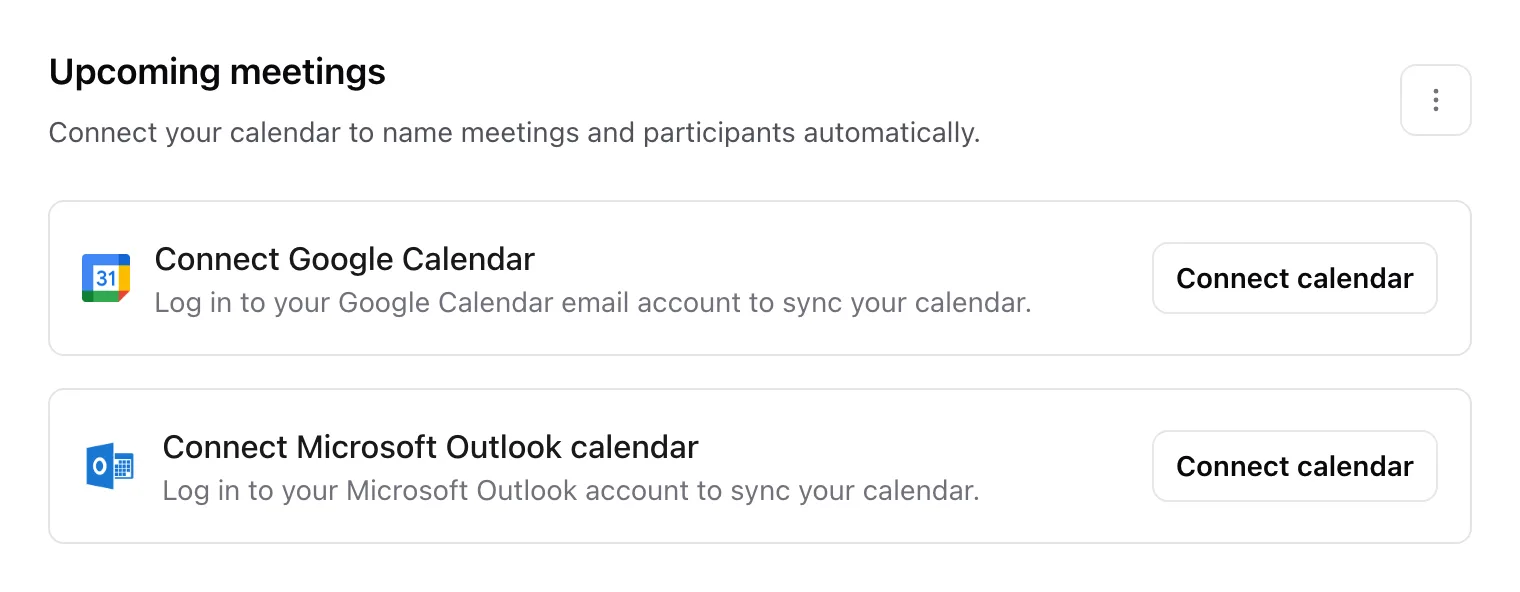
You can also connect from Settings → Integrations, on Google Calendar or Outlook Calendar, or in the phone app with the calendar button on the Jurnie tab.
What you get
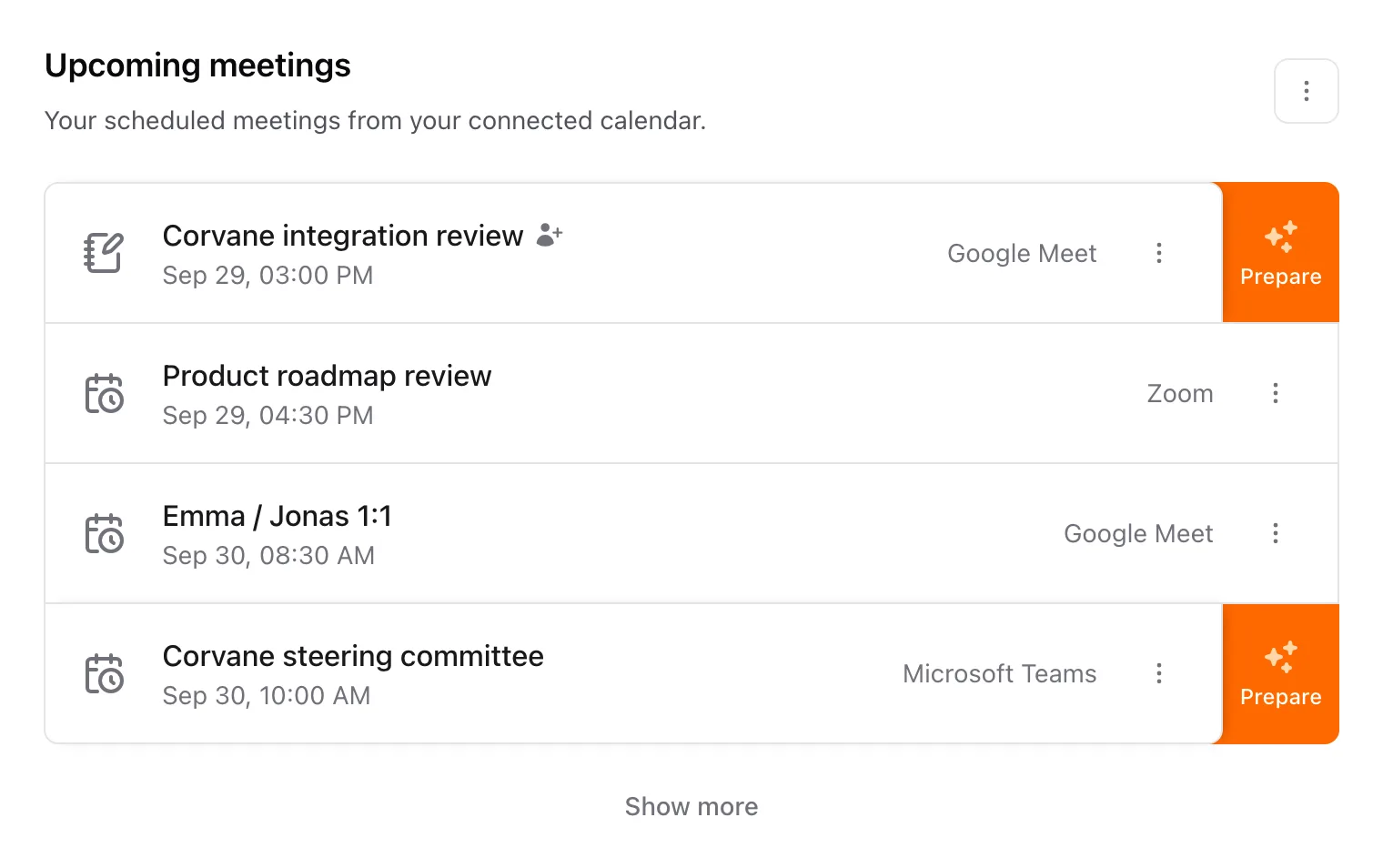
- Upcoming meetings shows today's and tomorrow's meetings, up to 10, or your next few if those days are empty. Show more adds five at a time. Meetings you declined don't appear, and neither do events with no meeting link and no other participants, such as a lunch break.
- Click the meeting app's name on a meeting to join the call. Click the meeting itself to write personal notes before it starts.
- When you start capturing in the desktop or phone app, Jurnie looks for the calendar event that's under way or about to start, with other people invited or personal notes from you. The meeting takes that event's title and participants.
- On a meeting with a link, the Meeting options (⋮) menu lets you invite Jurnie's note taker and tell participants that notes will be taken.
- Meetings with people Jurnie already knows show Prepare, which opens a brief. See Prepare for a meeting.
To have the note taker join every meeting with a link, turn on Automatically join meetings in Calendar settings, under More options (⋮) next to Upcoming meetings. It's off until you turn it on. See Invite Jurnie to a meeting.
What Jurnie can see
- Jurnie gets read-only access. It never changes your calendar.
- It reads your primary calendar only.
- You can connect one calendar at a time. Connecting the other provider replaces the first; afterwards, check that Automatically join meetings is on.
- With Google, Jurnie also reads your Other contacts, the people Google saved from your email, to fill in participants' names.
Disconnect
- Open Settings → Integrations.
- On your calendar, click Disconnect and confirm.
Meetings missing, or the note taker not joining? See Calendar meetings are missing.
Last updated October 3, 2026