No articles match “”.
Try fewer or different words.
Browse topics
Find a meeting
Search your meetings by title, filter them by label, and ask Jurnie when you remember what was said rather than what the meeting was called.
Your meetings are listed under Your meetings on Home, newest first. The latest five are also in the sidebar under Recent meetings; See all takes you to the full list. Each teamspace page has the same list for its own meetings. See Teamspaces.
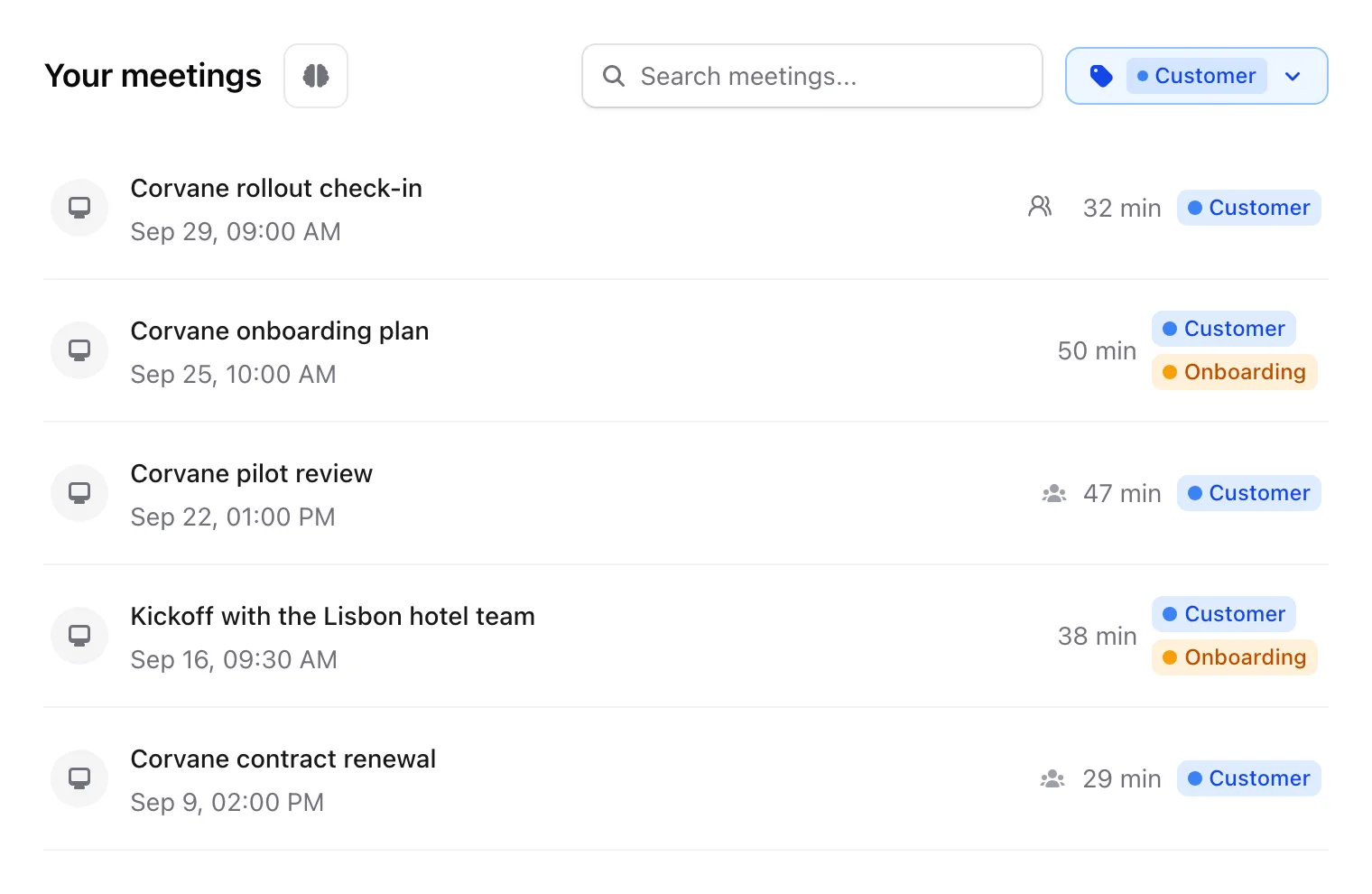
The list holds your own meetings, meetings someone shared with you with edit access, and meetings shared with one of your teamspaces or with your whole organization. Meetings shared with you to view only aren't in the list: open them from the link in the email you got, or ask the owner for the link or for Edit. See Share a meeting. If you wrote notes for a meeting that was never captured, it appears as Not captured once its time has passed. Meetings archived through Ask Jurnie aren't listed; ask Jurnie to unarchive a meeting to bring it back.
Search by title
Type in Search meetings... above the list. Jurnie matches any part of a meeting's title, as you type; capitals don't matter. To find a meeting by something that was said in it, ask Jurnie (see below).
Find a meeting by what was said
When you remember the conversation but not the title, ask Jurnie, for example "Which meetings with Corvane in March were about pricing?". Ask Jurnie searches across your meetings by meaning, and can narrow the search to a date range or to a participant. See Ask Jurnie about your meetings.
Filter by label
- Click Labels next to the search field.
- Pick one or more labels. The list shows meetings that have any of them.
- To go back to all meetings, open Labels again and click Clear filter.
In the mobile app, tap the filter icon at the top of the meetings list to filter by label.
Add labels to a meeting
- On the meeting's page, click Add label above the tabs.
- Pick a label, or type a new name and choose Create "…". New labels get a random color.
Labels are personal: colleagues who open the same meeting don't see the labels you put on it.
To take a label off a meeting, hover it and click its cross (Remove label). To rename a label, change its color or delete it, hover it in the Add label list and click the three dots (Edit label). Deleting a label removes it from every meeting that has it, and can't be undone.
You can add labels on the page of an upcoming meeting too, before it happens.
Tip: Ask Jurnie can also change a meeting's labels or title for you. See Let Ask Jurnie make changes for you.
Last updated October 3, 2026