No articles match “”.
Try fewer or different words.
Browse topics
Organization settings
Settings that apply to everyone in your organization, from the company name and AI instructions to memory and billing.
Organization settings apply to everyone in your organization. To open them, click your name at the bottom of the sidebar, then Settings and Organization.
Admins: Only admins see the Organization tab. Members can ask an admin to change these settings.
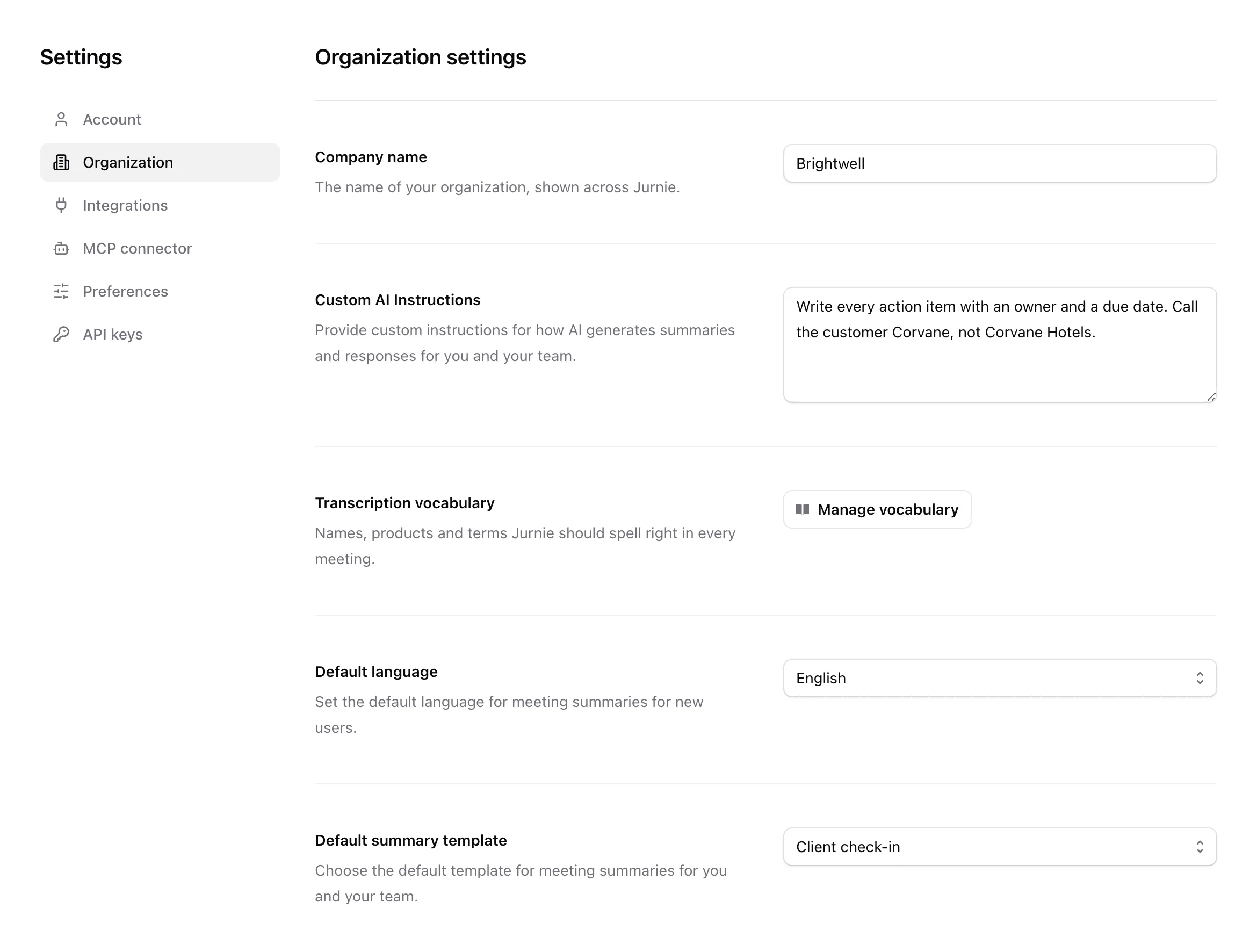
What you can change
- Company name: your organization's name, shown across Jurnie and in the invitation emails new members get.
- Custom AI Instructions: instructions Jurnie follows when it writes summaries and answers in Ask Jurnie, for everyone in your organization. For example, how to phrase action items, or what to focus on.
- Transcription vocabulary: Manage vocabulary opens the list of names and terms Jurnie should spell right. Every member can edit it, not only admins. See Teach Jurnie your words.
- Default language: the Jurnie Language that people you invite from now on start with. Existing members keep their own, which they change in their account settings. See Languages in Jurnie.
- Default summary template: the template for your team's meeting summaries. A member's own default template takes priority. See Summary templates.
- Memory: the switch lets Jurnie remember the people, companies, projects and topics from your meetings. See How Jurnie remembers.
- Memory language: the language Jurnie writes your organization's memory in. It doesn't change the language of summaries. When you change it and click Save changes, Jurnie asks you to confirm with Change language: new memory is written in the new language, and what Jurnie already remembers stays as it is.
- Billing management: your subscription and payment method. See Subscription and billing.
Click Save changes to apply your changes. Reset throws away changes you haven't saved.
Turning memory off
When you switch Memory off and click Save changes, Jurnie asks you to confirm with Turn off memory. Once it's off, Jurnie stops adding to memory from new meetings and stops using memory for everyone in your organization: in the app, in Ask Jurnie, and in connected tools and the API. Turning memory off doesn't delete what Jurnie already remembers, so turning it back on restores it. To have memory deleted, for the whole organization or for one person, an admin can email support@jurnie.ai.
Last updated October 3, 2026