No articles match “”.
Try fewer or different words.
Browse topics
Rename, delete or download a meeting
Change a meeting's title, download its transcript as a text file, or delete the meeting for good.
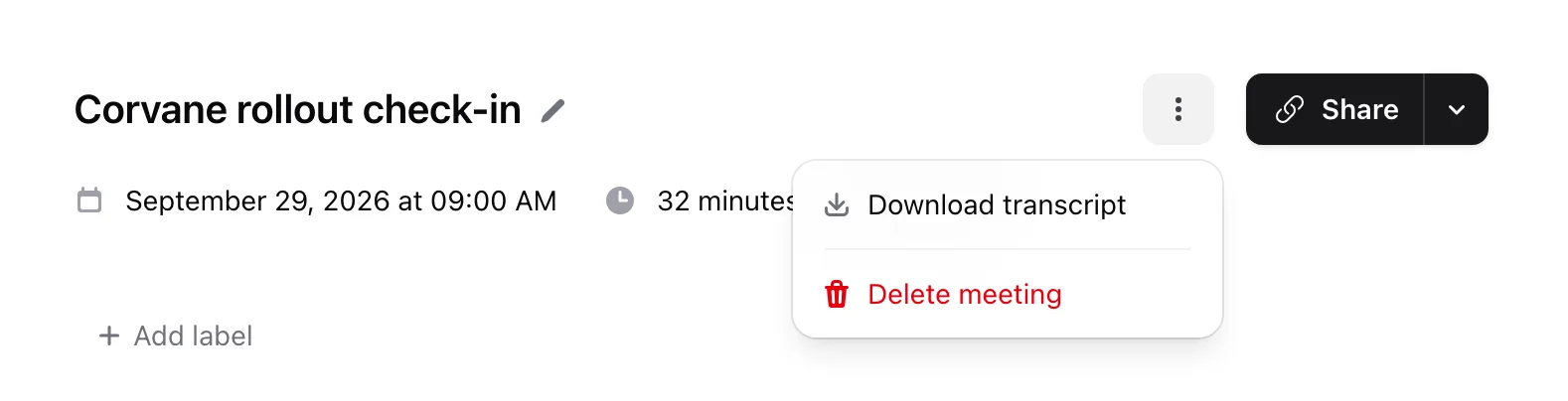
Everything here starts at the top of the meeting's page: the title on the left, and More options (the three dots) on the right.
Rename a meeting
Jurnie names a meeting after its calendar event, and a meeting created from an audio file after the file. When there's neither, it writes a short title from the transcript.
- Click the meeting's title.
- In Edit Meeting Title, type the new title under Meeting Title.
- Click Save.
Anyone who can edit the meeting can rename it.
Download the transcript
- Click More options (the three dots).
- Click Download transcript.
You get a text file named after the meeting. Its header lists the meeting's date and time, who submitted it, its length and its participants (the speaker names), followed by the transcript, one passage per line: the time, the speaker and what they said. In the desktop app, you choose where to save it.
Download transcript appears once the meeting has finished processing and has a transcript. To take the summary somewhere else, use Copy on the Summary tab; see How summaries work.
Delete a meeting
Only the meeting's owner can delete it.
- Click More options (the three dots).
- Click Delete meeting.
- Confirm with Delete Meeting.
Deleting is permanent and can't be undone.
You can delete a meeting while it's still being captured, which discards the capture. While a meeting is processing, you can't delete it until processing has finished.
Tip: You can also ask Jurnie to rename a meeting. See Let Ask Jurnie make changes for you.
Last updated October 3, 2026