No articles match “”.
Try fewer or different words.
Browse topics
Jurnie on your phone
The Jurnie app for iPhone and Android captures in-person meetings, and lets you read your meetings, ask Jurnie and send the Jurnie bot to calls on the go.
The Jurnie mobile app captures meetings that happen in a room, like a client visit or a workshop, with your phone's microphone. You can also read your meetings, ask Jurnie questions and have the Jurnie bot join online meetings from your calendar.
Get the app
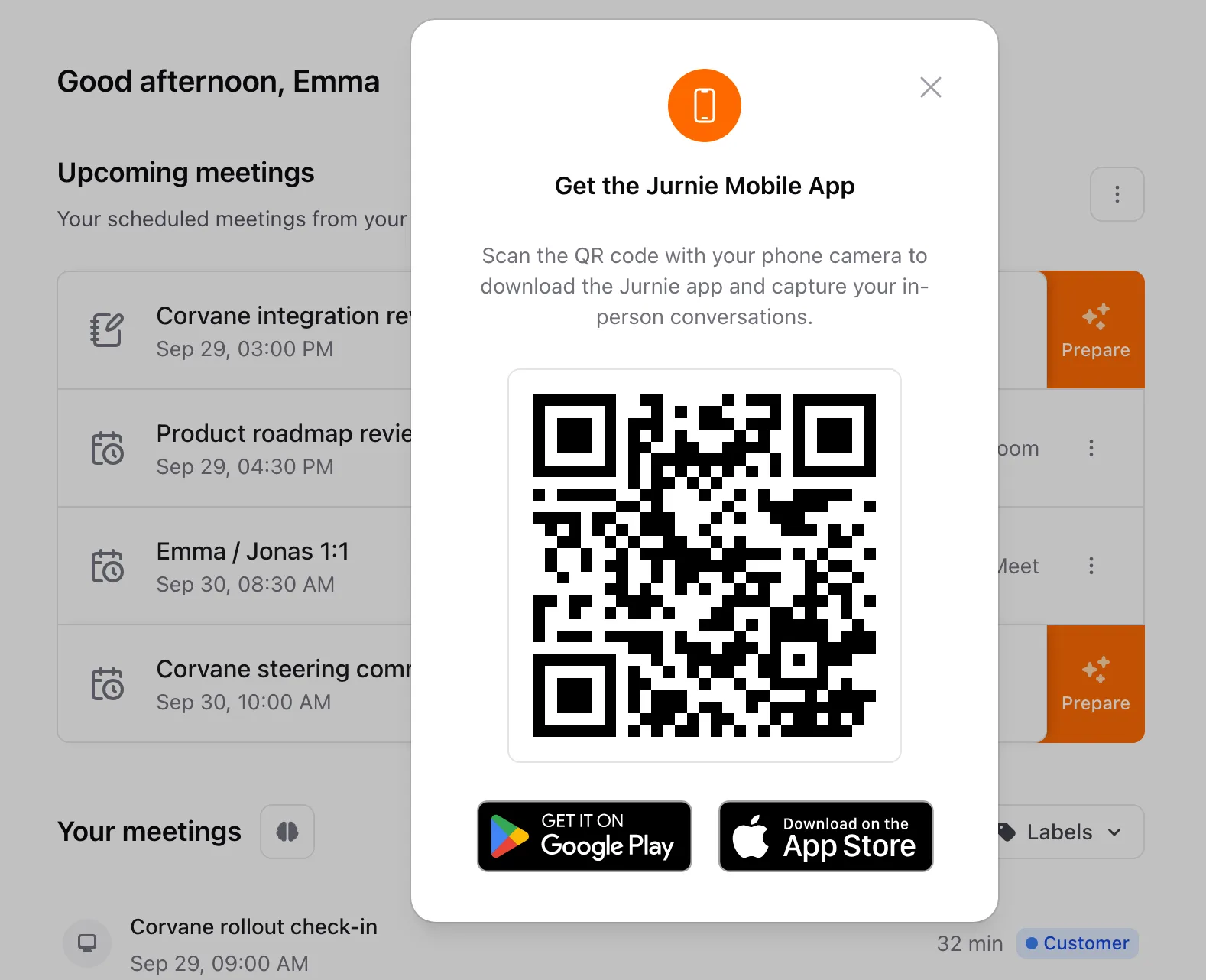
Download Jurnie from the App Store (iPhone and iPad) or Google Play, or open jurnie.ai/download-mobile on your phone. On a computer, click your name at the bottom of the sidebar, choose Download Jurnie Mobile, and scan the QR code with your phone's camera.
Sign in with your Jurnie account: Continue with Google, Continue with Microsoft or Continue with email. On an iPhone or iPad you can also use Continue with Apple.
Capture an in-person meeting
- Open the Jurnie tab, in the middle of the bottom bar.
- Tap the large button to start. The first time, allow microphone access.
- Tap it again to pause, and once more to carry on.
- When the meeting ends, tap Finalize Meeting. Jurnie then writes the transcript and summary. To throw a meeting away instead, tap Discard and confirm. This can't be undone.
Capture keeps going when you lock your phone or switch apps. If you lose your connection, the meeting is saved on your phone and uploads once you're back online. See Capture in-person and hybrid meetings.
Your meetings
The Meetings tab lists your meetings. You can filter them by label and, if your organization uses teamspaces, show just one teamspace's meetings. Open a meeting to read its Summary and Transcript, rename speakers, change the title, labels or summary template, share it, or delete it.
A meeting that's still being captured on another device shows as in progress. You can finalize it from your phone with Finalize meeting.
Ask Jurnie
Tap the Ask Jurnie button in the bottom-right corner to ask about all your meetings. On a meeting's page, the same button asks about that meeting. You can attach files of up to 10 MB. When Ask Jurnie proposes a change, tap Approve or Reject. See Ask Jurnie about your meetings.
Your calendar and the Jurnie bot
On the Jurnie tab, tap the calendar button at the top right to see Upcoming Meetings:
- The first time, tap Connect Google Calendar or Connect Outlook Calendar.
- Switch on a meeting that has a meeting link to have the Jurnie bot join it.
- To send the bot to a call that has already started, tap the add-person button at the top (shown once your calendar is connected), paste the link under Invite Bot to Live Meeting, and tap Invite Now.
See Invite Jurnie to a meeting.
On your computer
Set up agents, open the pages for people, companies and projects, connect integrations and change most settings, including Jurnie Language, in the web and desktop apps. The Profile tab on your phone has your account, app settings, templates and the Help center button.
Last updated October 3, 2026