No articles match “”.
Try fewer or different words.
Browse topics
Agents: follow-up after your meetings
Set up agents that run after your meetings to write recaps, collect action items or update tools such as HubSpot and Jira, with your approval.
An agent is a saved instruction Jurnie carries out after your meetings: which meetings it's for and what it should do. When a meeting matches, the agent does the work and puts the result on the meeting's Agents tab. Anything it wants to change in another app waits for your approval.
Create an agent
- Click Agents in the sidebar, then Add agent.
- Pick Blank agent, or a ready-made agent from groups such as General, Client work or Commercial. The preview shows When it runs and What it does.
- Click Use agent (or Start blank).
- Adjust the fields, then click Add agent.
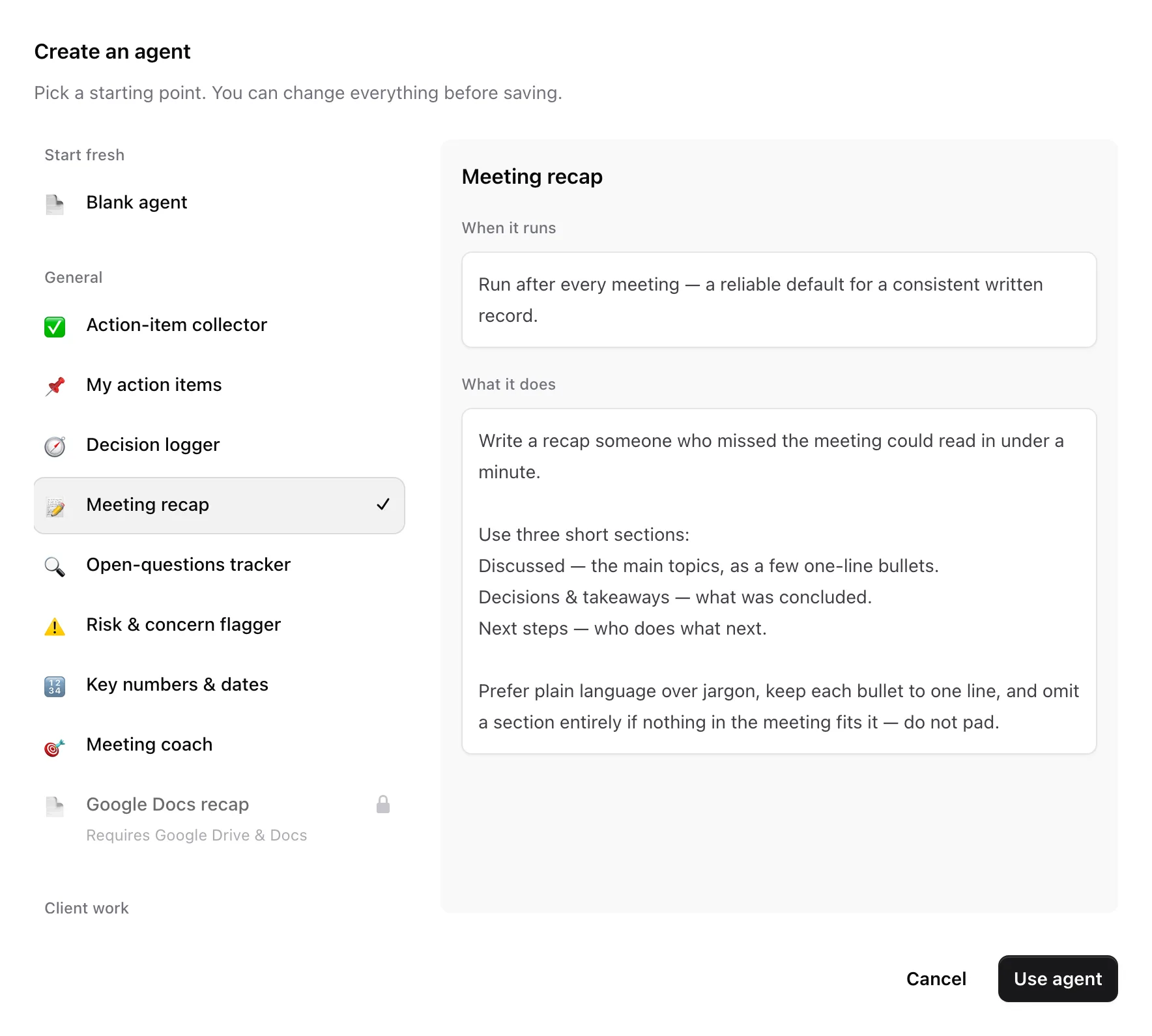
An agent that needs another tool is marked Requires with the tool's name, such as Requires HubSpot. It can't be used until that tool is connected; selecting one offers to connect it. See Connect Jurnie to your other tools.
The fields
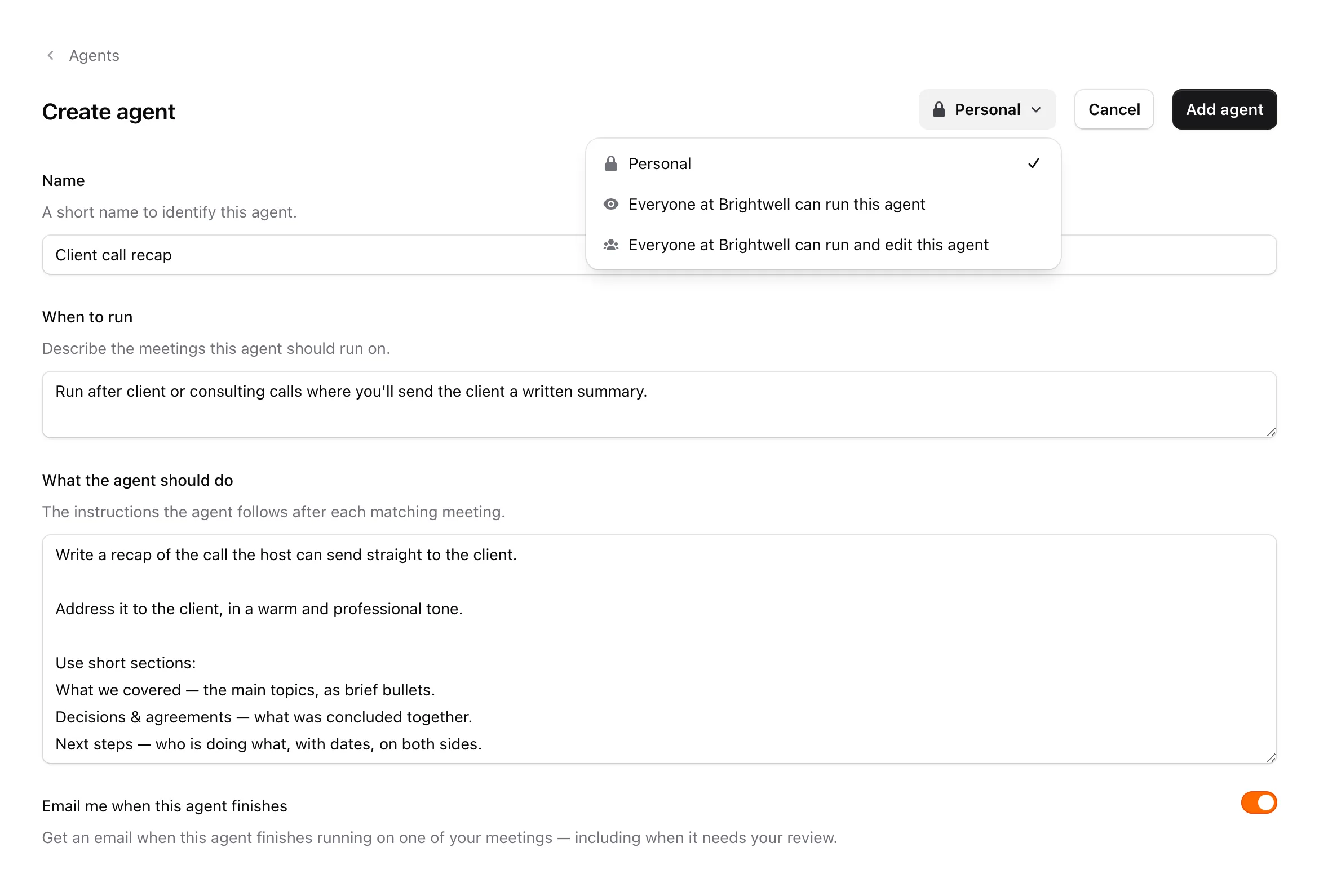
- Name: unique among the agents you can see.
- When to run: the meetings it's for. Jurnie reads each processed meeting's transcript and runs only the agents whose description clearly matches, so "Sales calls with a prospect" works better than "important meetings".
- What the agent should do: its instructions. Without a connected app, its result stays in the run: a recap, a list or a draft email for you to review and send yourself.
- Email me when this agent finishes: on by default. It emails you when a run finishes, needs your review or fails, if Enable email notifications is also on in your account settings.
Who it runs for
Choose in the scope menu at the top:
- Personal: runs only on your meetings; only you see it.
- Everyone at your organization can run this agent: runs on everyone's meetings in your organization; only you can edit it.
- Everyone at your organization can run and edit this agent: the same, and anyone in the organization can edit or delete it.
When a shared agent runs on a meeting, only the meeting's owner sees the results, and nothing changes in another app without their approval. Only the agent's creator can change its scope. Each person can turn a shared agent off for their own meetings with the switch on its row in Agents.
An agent acts for the person who owns the meeting. In a tool each person connects for themselves, such as Jira, it uses that person's own connection, so it can only work there on meetings of people who have connected the tool. A tool an admin connects once for the whole organization, such as HubSpot, works on everyone's meetings.
When agents run
- Automatically, after a meeting has been processed: each agent at most once per meeting.
- By hand: on the meeting's Agents tab, select the agent and click Run agent, or Run again if it has run before.
See Review what an agent proposes.
Edit, copy or delete an agent
Click an agent in the list to open it. Changes apply to future runs only. The ⋮ menu has Duplicate, which makes a personal copy, and, if you can edit the agent, Delete. Agents you can't edit open as Agent details, where you can still change the email switch.
Note: Agents need an active subscription or trial. While your subscription is inactive, Agents isn't in the sidebar.
Last updated October 3, 2026