No articles match “”.
Try fewer or different words.
Browse topics
Invite and manage your team
Invite people to your organization, choose who is an admin, and deactivate members who leave.
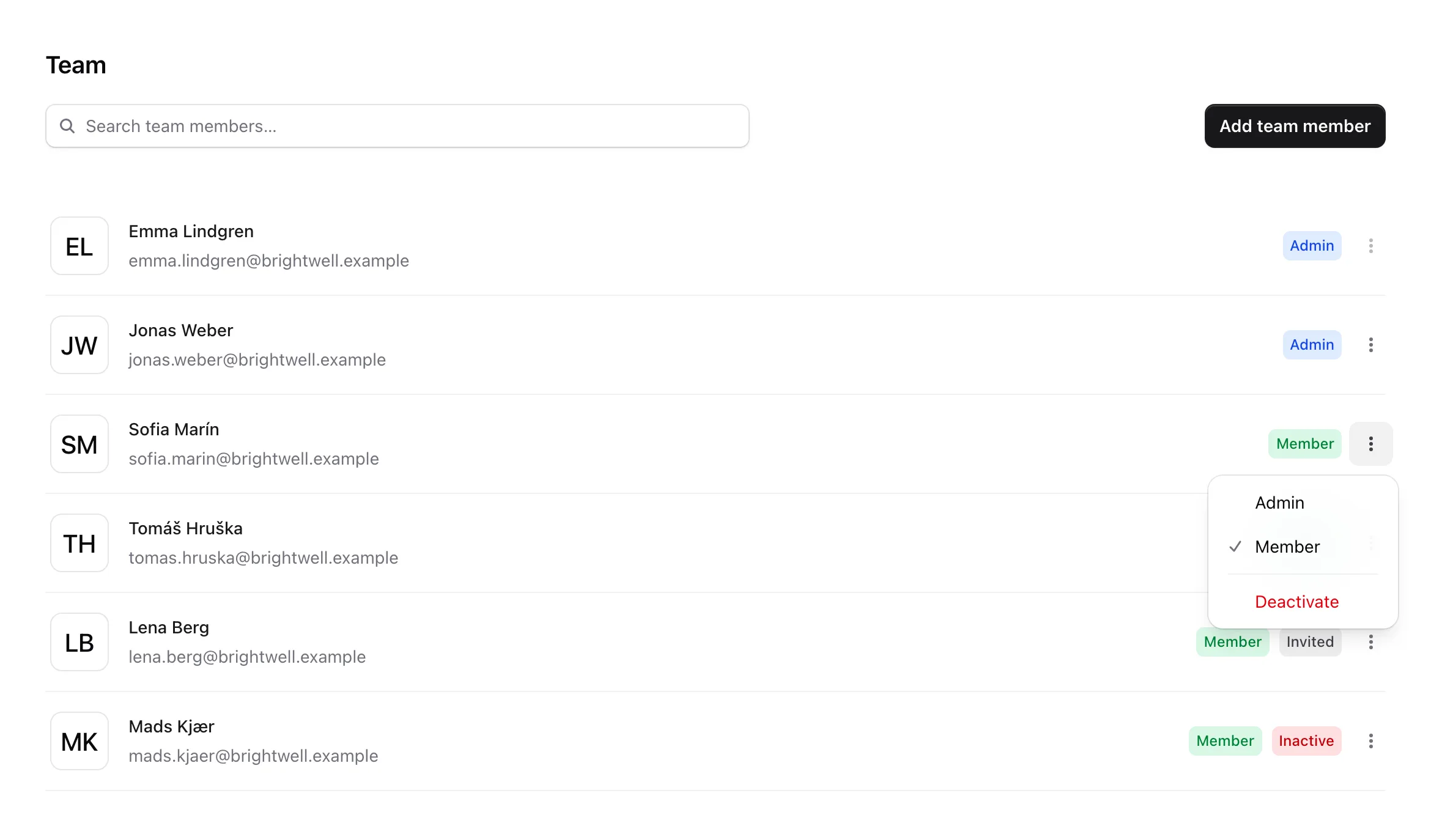
Admins manage who is in the organization on the Team page. To open it, click your name at the bottom of the sidebar, then Team.
Admins: Only admins see the Team page. The person who signs up for Jurnie is the organization's first admin.
Invite someone
- Click Add team member.
- Enter their Email, and their Name if you like.
- Choose a Role: Member or Admin.
- Click Add member.
Jurnie emails them an invitation to join your organization. Until they accept, they show an Invited badge. To accept, they open the link and either continue with Google or Microsoft, or set a password and click Create account.
Note: They should continue with the Google or Microsoft account of the email address you invited. Signing in with a different address creates a separate Jurnie account, in an organization of its own.
If adding someone fails, their email address may already have a Jurnie account, or every seat you pay for may be in use (see "Seats" below). Each address can belong to one account only. Email support@jurnie.ai if that person should join your organization. We'll confirm with that person before moving their account.
Pending invitations
Click More options (⋮) on the invited person's row:
- Resend invite emails a new link. The previous link stops working.
- Delete invite asks you to confirm, then withdraws the invitation. Its link stops working.
Admins and members
Admins can invite people, change roles, deactivate members, change the organization settings and manage billing. Some integrations, such as HubSpot, can only be connected by an admin.
By default, being an admin doesn't open other members' meetings to you. Like everyone else, you see the meetings shared with you. Teamspaces have their own admins, separate from this role. See Teamspaces.
To change someone's role, click More options (⋮) on their row and choose Admin or Member. You can't change your own role or deactivate yourself. Ask another admin.
When someone leaves
Click More options (⋮) on their row and choose Deactivate. They can no longer sign in or use Jurnie, and their API keys stop working. Their meetings stay in Jurnie. They show an Inactive badge, and Activate brings them back.
You can't delete someone who has already joined; deactivate them instead. To have their account and meetings deleted, see Close your account or delete your data.
Seats
Your subscription counts active members. Pending invitations and deactivated members aren't billed, and the count updates on its own when people join or are deactivated. See Subscription and billing.
If your organization pays for a fixed number of seats, you can't invite or reactivate anyone while every seat is in use. An admin can email support@jurnie.ai to change the number.
Last updated October 3, 2026