No articles match “”.
Try fewer or different words.
Browse topics
Personal notes
Write your own notes on a meeting, before or during it, add files, and choose whether Jurnie uses them in the summary.
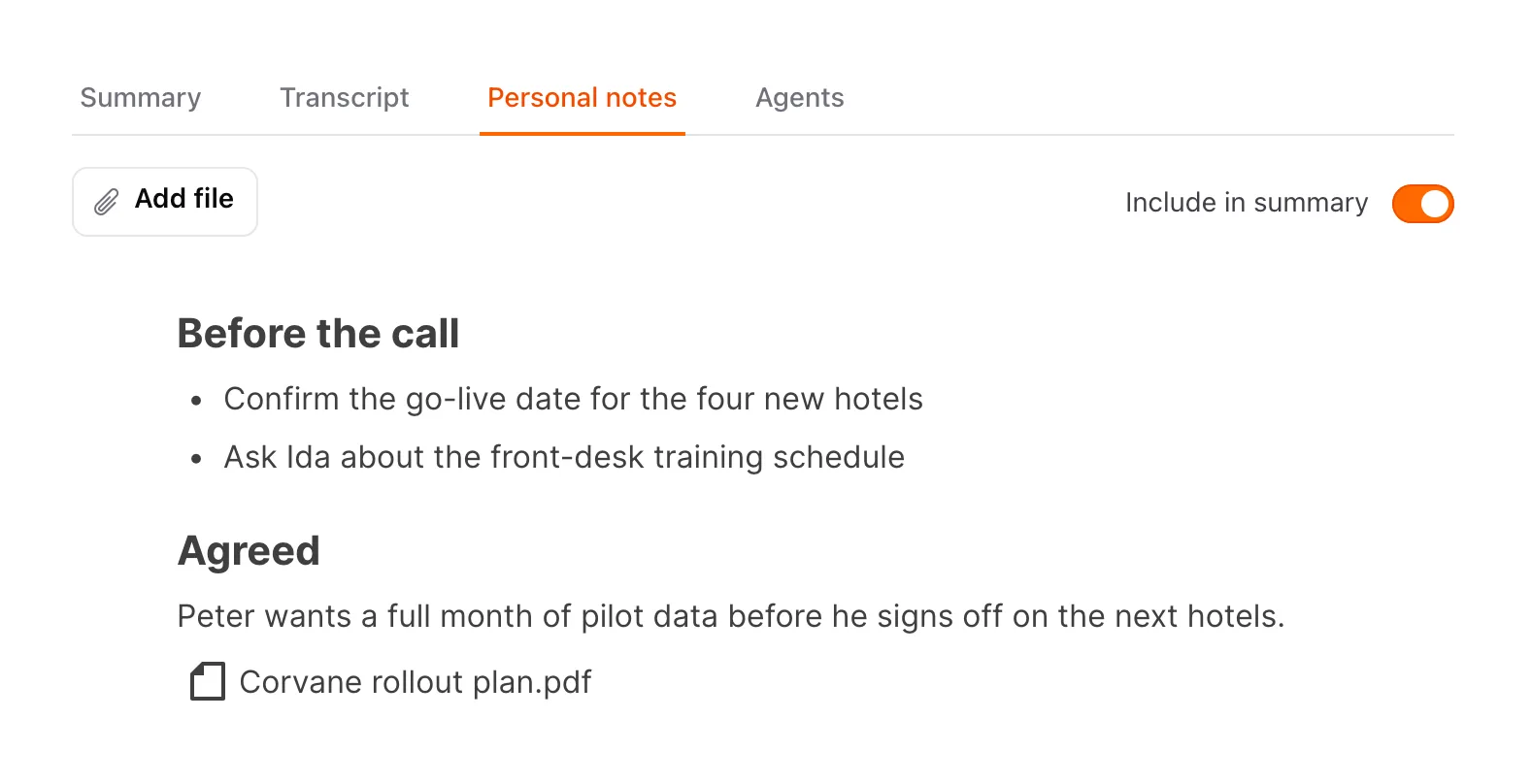
Every meeting has a Personal notes tab for your own notes. Other people never see your notes page. Jurnie can use your notes when it writes the summary, and you can start them before the meeting begins.
Write notes
- Open a meeting and click the Personal notes tab.
- Type your notes. Type / for headings, lists and other formatting.
- To add a file, click Add file or drag the file onto the note.
Notes save as you type: the tab shows Saving… and then Saved. You can write them while Jurnie is still capturing the meeting.
A note takes images (JPG, PNG, HEIC, GIF, WEBP) and documents (PDF, Word, Excel, PowerPoint, CSV, text), up to 10 MB each and 100 per note. HEIC photos show only where your browser can display them, such as Safari and the desktop app on a Mac.
Personal notes are in the desktop app and on the web, not in the phone app.
Use your notes in the summary
On meetings you own, Include in summary decides whether Jurnie reads your notes when it writes the summary. It's on by default. Where your notes and the transcript disagree, Jurnie goes with your notes, so this is a good place for decisions and names you want right. Only the text counts: Jurnie doesn't read attached files for the summary.
If you change your notes, or the switch, after the summary is written, the Summary tab shows This summary may be out of date. Click Regenerate to write it again.
When you share a meeting, other people see the summary, never your notes page. But while Include in summary is on (the default), what you write can appear in that summary. Turn it off for notes that should stay private. Everyone who opens a shared meeting gets their own personal notes, and only the owner's notes can go into the summary.
Notes before a meeting
With your calendar connected:
- On Home, under Upcoming meetings, click the meeting. Hovering over it shows Add personal notes.
- Write your notes.
When the meeting is captured, in the desktop app, on your phone or by Jurnie's note taker, your notes are already on it. If nobody captures it, it appears under Your meetings after its end time, marked Not captured, so your notes stay easy to find. Only you can see it.
Tip: Ask Jurnie can read your own notes when you ask it about a meeting. See Ask Jurnie about your meetings.
Last updated October 3, 2026