No articles match “”.
Try fewer or different words.
Browse topics
Calendar meetings are missing
Why a meeting from your calendar doesn't appear in Jurnie, or Jurnie doesn't join it, and how to fix it.
Most calendar problems come down to which calendar Jurnie reads, which events it shows, and whether automatic joining is on. Find what you see below.
Some meetings are missing from Upcoming meetings
Jurnie shows events from your connected calendar, but leaves some out on purpose:
- Only your primary calendar is read. Events on your other calendars, or on calendars shared with you, don't appear.
- Events you declined are hidden.
- Personal blocks are hidden: events with no meeting link and nobody else invited, such as Lunch or Focus time.
- One calendar at a time. You can connect Google Calendar or Outlook Calendar, not both. Connecting one replaces the other.
Nothing shows up, or changes stopped coming through
Connect the calendar again. This gives Jurnie fresh access, for example after you removed Jurnie's access in your Google or Microsoft account.
- Open Settings → Integrations.
- On Google Calendar or Outlook Calendar, click Disconnect and confirm.
- Click Connect and sign in with the account whose calendar you want. For Outlook, Microsoft lets you pick the account each time.
Finish signing in within 10 minutes, or the connection fails and you need to start again. On the web, the sign-in opens in a pop-up window, so allow pop-ups for Jurnie. In the desktop app, it opens in your browser.
Note: After you reconnect your calendar or switch between Google and Outlook, check that Automatically join meetings is on.
Jurnie doesn't join meetings from your calendar
Automatic joining is off. It's off when you first connect a calendar. To turn it on:
- In Upcoming meetings, click More options (⋮), then Calendar settings.
- Switch on Automatically join meetings and click Save.
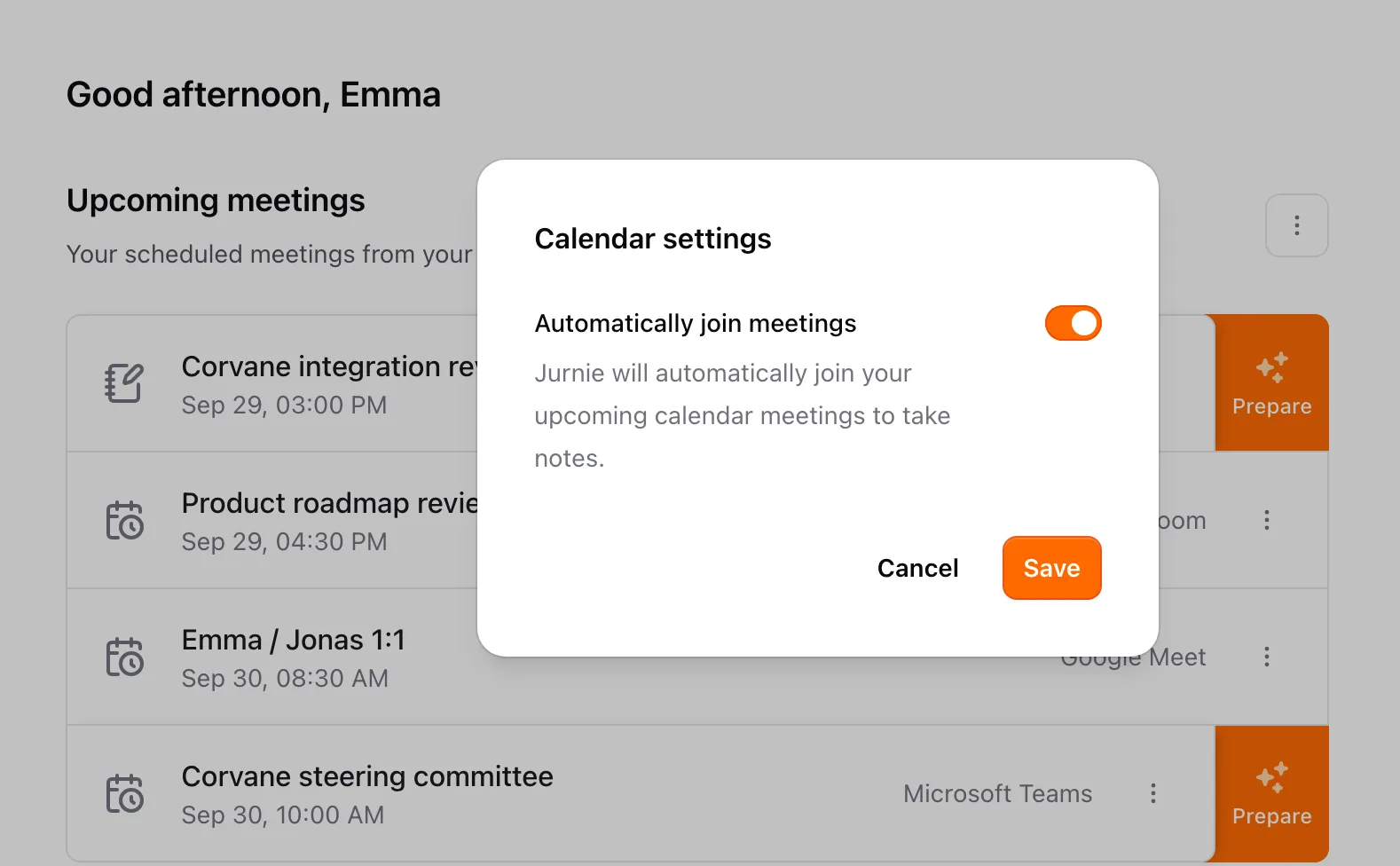
You can also open it from the settings button on your calendar in Settings → Integrations. Jurnie then joins every upcoming meeting on your calendar that has a meeting link.
The event has no meeting link. Jurnie can only join events with a video call link, such as Zoom, Google Meet or Microsoft Teams. If a link is added to the event later, automatic joining picks it up. For meetings in a room, see Capture in-person and hybrid meetings.
The subscription ended. Jurnie then stops joining the meetings it was scheduled for. Once the subscription is active again, check that Automatically join meetings is on. See Subscription and billing.
When an event moves, Jurnie moves with it. When an event is deleted, Jurnie no longer joins it.
To bring Jurnie into a single meeting, click the event's Meeting options (⋮) and choose Invite Jurnie to this meeting. Or choose Invite Jurnie to live meeting from the More options (⋮) menu of Upcoming meetings and paste the meeting link. See Invite Jurnie to a meeting.
Still missing a meeting? See A meeting wasn't captured, or email support@jurnie.ai.
Last updated October 3, 2026