No articles match “”.
Try fewer or different words.
Browse topics
Ask Jurnie about your meetings
Ask questions across all your meetings, about one meeting or person, or about how to use Jurnie, and get answers that link to their sources.
Ask Jurnie answers from your meetings. Ask it to sum up your week, find what someone said, draft a follow-up email, or explain how to do something in Jurnie.
Where to find it
- Ask Jurnie in the sidebar opens the full page, with your chats listed on the left.
- Home, on wide screens, has an Ask Jurnie panel for questions across all your meetings.
- A meeting's page, once the meeting is processed, and the page of a person, company, project or topic have a column on the right for questions about them.
- The desktop app has a floating panel you can open from any app. See The Ask Jurnie panel on desktop.
Open in Ask Jurnie (on Home, Open in full view) moves a chat from those columns to the full page. The mobile app has Ask Jurnie too (Jurnie on your phone).
What it can read
Ask Jurnie only reads meetings you can open: their summaries, transcripts and your own personal notes. It also uses:
- what Jurnie remembers about people and companies, when memory is on (How Jurnie remembers)
- your earlier chats
- this help center: ask "How do I invite Jurnie to a meeting?" and it answers from the article and links to it
- tools you've connected, such as HubSpot or Google Drive
It replies in the language you write in.
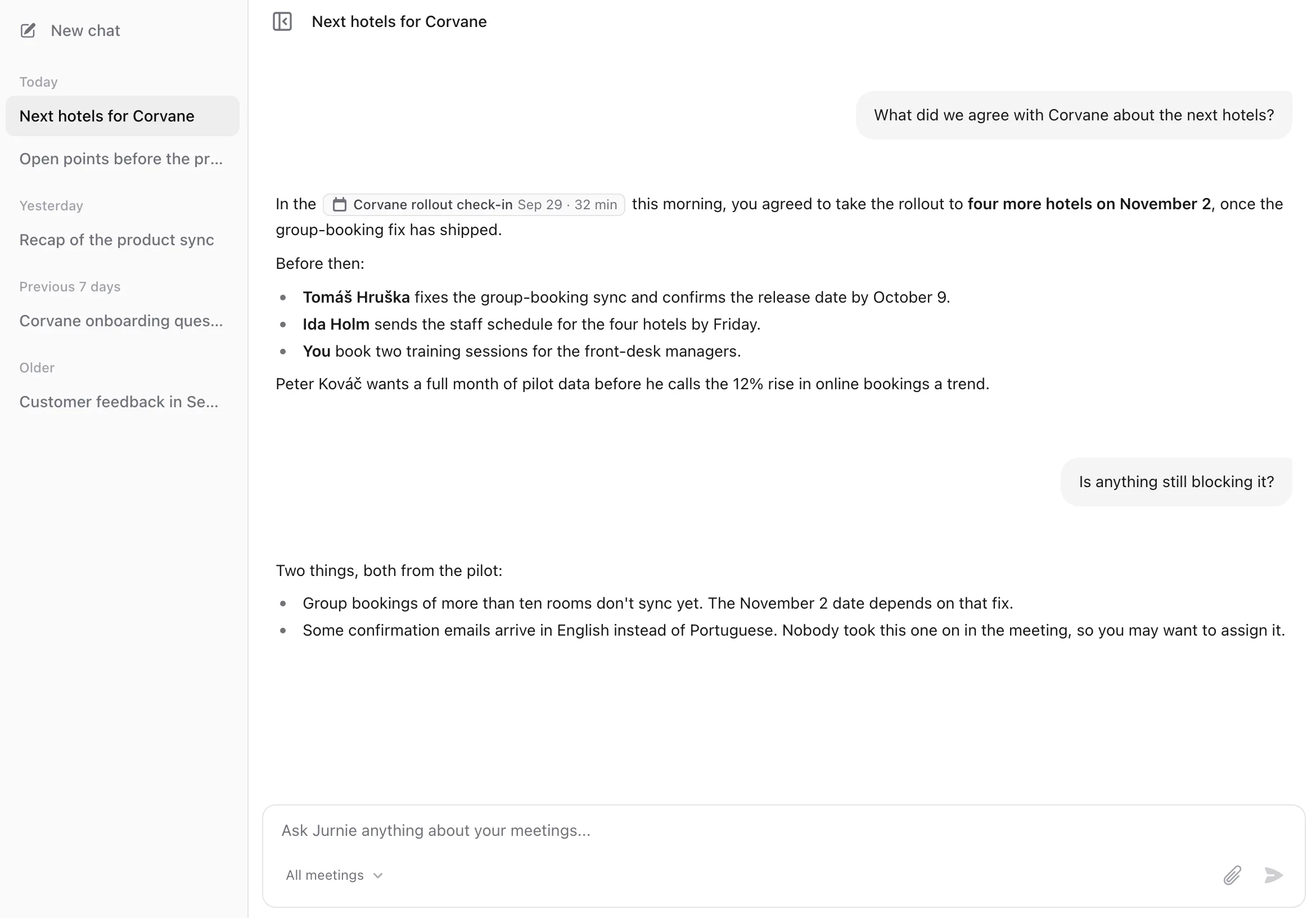
Ask a question
- Type your question. Press Enter to send, or Shift+Enter for a new line.
- To start from one meeting, click All meetings at the bottom of the message box and pick the meeting. Jurnie can still look at other meetings when that helps.
- To add files, click Add file (the paperclip), drag them in, or paste them. You can add up to 10 files of up to 10 MB each: images (JPG, PNG, GIF, WebP) and documents (PDF, Word, PowerPoint, Excel, text, Markdown, CSV, HTML, JSON).
While Jurnie works, a line above the answer says what it's doing, such as Searching your meetings. When the answer is done, that line becomes Thought process, which you can open to see the steps. To stop an answer, click Stop generating where the send button was.
Use the answer
- Meetings, chats, people and companies in an answer are links. When you open a meeting or a person's page this way, the chat stays open beside it, so you can keep asking.
- Copy copies an answer with its formatting, ready for an email or a document.
Find and delete chats
Each chat is named after the first message you sent in it. On the Ask Jurnie page, chats are grouped under Today, Yesterday, Previous 7 days and Older. To delete one, open its Chat actions menu, choose Delete chat and confirm with Delete. Deleting is permanent.
Ask Jurnie can also change things for you, once you approve them. See Let Ask Jurnie make changes for you.
Note: Ask Jurnie needs an active subscription.
Last updated October 3, 2026