No articles match “”.
Try fewer or different words.
Browse topics
The Ask Jurnie panel on desktop
A small Ask Jurnie window that floats over your other apps, with shortcuts to open it and to send Jurnie a screenshot.
The desktop app has a small floating Ask Jurnie panel, so you can ask a question without leaving what you're working on.
Open the panel
The panel has two states: a small Jurnie button near the bottom-right corner of your screen, and the open chat. Click the small button to open the chat.
These show the small button:
- Cmd+Shift+J (macOS) / Ctrl+Shift+J (Windows), from any app. The main window hides. Press it again to hide the panel.
- Closing the main Jurnie window.
These open the chat directly:
- Clicking the Jurnie icon in the menu bar (macOS) or the system tray (Windows). Click it again to hide the panel.
- Collapse to panel on the Ask Jurnie page in the main window, which takes the chat you're in with you.
While Jurnie takes notes in a meeting, you may also see the meeting indicator, an orange or gray Jurnie badge. It's a separate thing: clicking it opens the main window, not the chat. See Capture an online meeting.
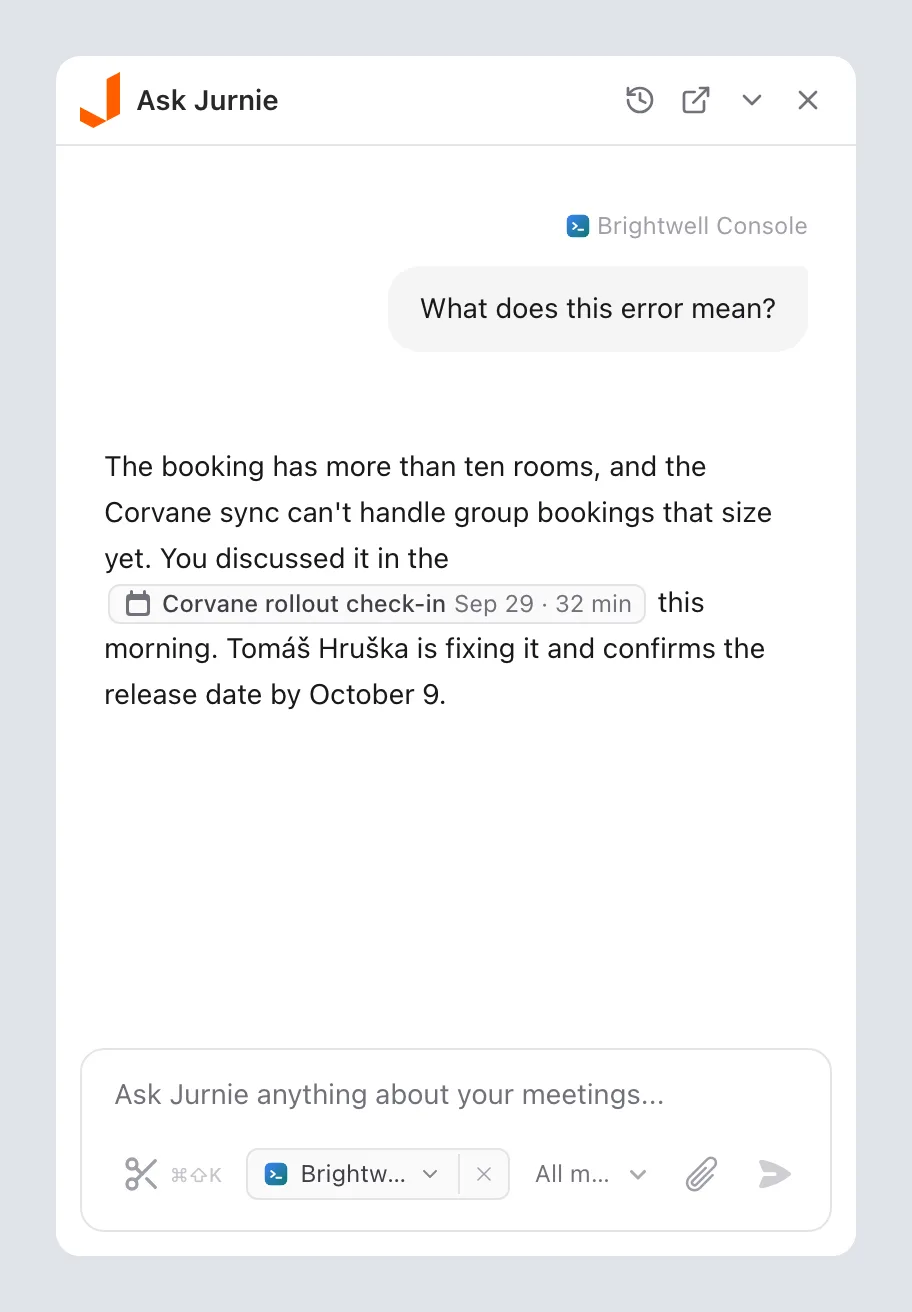
In the panel
The panel is a full Ask Jurnie chat. Its header has four buttons:
- Chat history: pick an earlier chat, or start a new one.
- Open App: opens the main window with the same chat and anything you'd typed.
- Collapse: shrinks the panel back to the small button.
- Close: hides the panel.
When the panel reappears, it starts a new chat, unless you brought one over with Collapse to panel. Links to meetings and people in an answer open in the main window, so the panel stays as it is.
Ask about what's on your screen
The panel knows which app you were just using, and shows it as a chip at the bottom of the message box. When you send a message, Jurnie includes the text you've selected in that app, the text it can read in that app's window, and a picture of the window. So you can ask "What does this error mean?" without copying anything.
- Click the chip to choose another open app.
- Click Remove reference screen (the ×) to send without it.
On macOS, reading the app's text needs Accessibility access. Without it, the panel says Grant Accessibility access so Jurnie can read app context. Click Open settings and turn Jurnie on under Privacy & Security → Accessibility.
Note: On macOS, Jurnie can read the app's text and include a picture of its window. On Windows, use Take screenshot to show Jurnie what's on your screen.
Send a screenshot
- Press Cmd+Shift+K (macOS) / Ctrl+Shift+K (Windows), or click Take screenshot (the scissors button) in the message box.
- Drag over the part of the screen you want. On Windows, this uses the Snipping Tool.
- With the shortcut, the screenshot is added to a message in the panel, which opens if it was hidden. With the button, it's added to the message you're writing. Type your question and send.
Note: The panel and its shortcuts work while you're signed in to the desktop app and your organization's subscription is active. If another app already uses one of these shortcuts, that shortcut won't work in Jurnie.
Last updated October 3, 2026