No articles match “”.
Try fewer or different words.
Browse topics
Review what an agent proposes
Approve, edit or reject the changes an agent wants to make in another app, ask it for changes, and run it again.
When an agent wants to change something in another app, such as adding a note in HubSpot or creating a Jira issue, it doesn't do it right away. It proposes the change on the meeting's Agents tab, and nothing happens until you approve it.
Find runs that need you
- The meeting's Agents tab shows an orange dot when a run is waiting for approval, a blue one while an agent is running and a red one if a run failed.
- In the tab, each agent is listed on the left. An orange lightning bolt marks a run to review, a green check a finished run and a red mark a failed one. A run waiting for review opens first.
- If you have the meeting open when an agent proposes changes, Jurnie shows Agent needs your review. Click Review to go to the run.
- With Email me when this agent finishes on, you also get an email.
Approve, edit or reject
Each proposed change is a card. Its label names the action, for example Add CRM Note or Update Deal Stage, and a changed value shows the current one crossed out next to the new one.
- To adjust a proposal first, click Edit and change the fields. Cancel drops your edits. Fields that identify what is being changed, such as a Jira issue key, are shown but can't be edited.
- Click Approve to apply the change, or Reject to drop it.
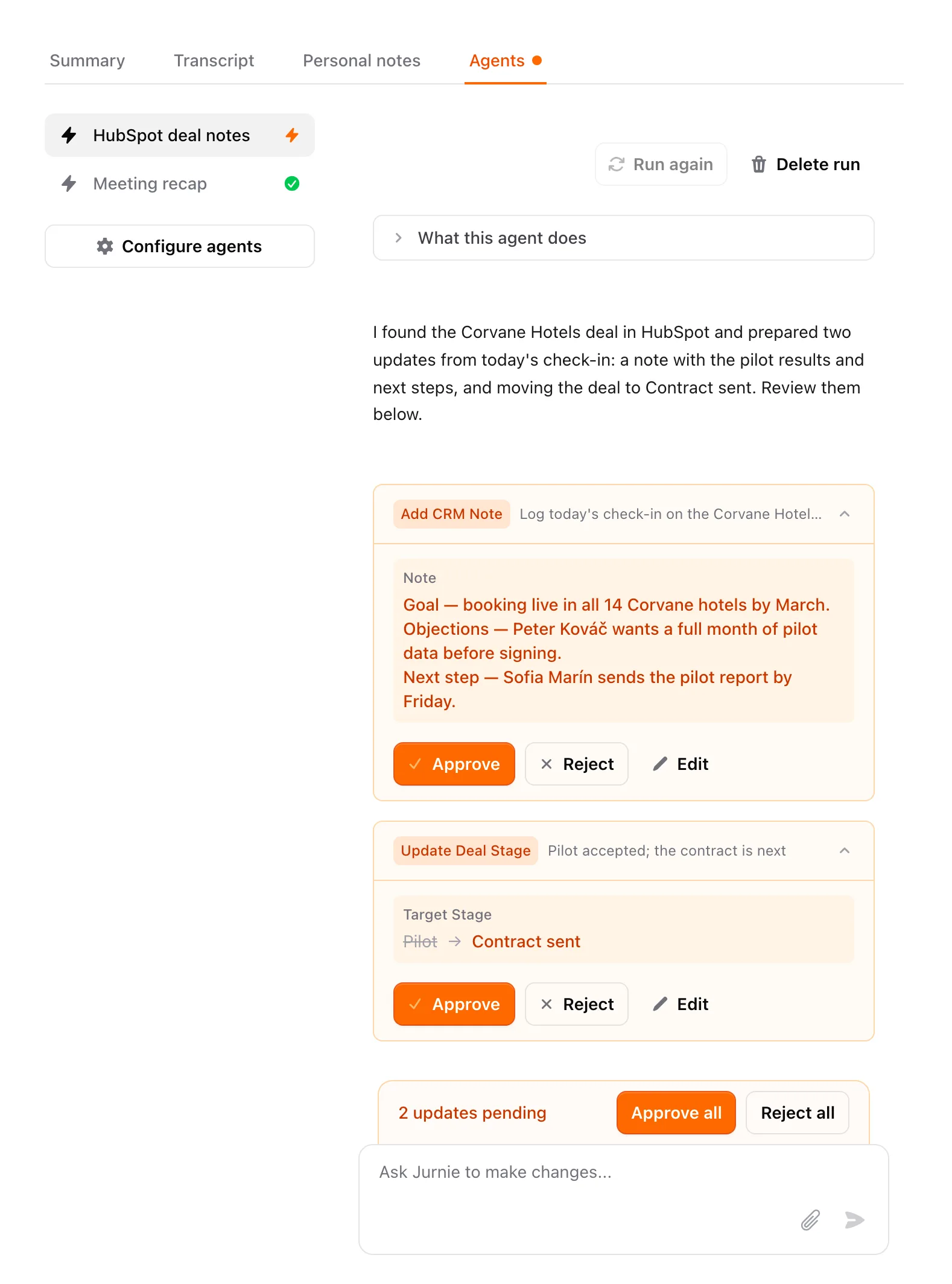
While changes are waiting, the bar above the message box shows how many and offers Approve all and Reject all.
An approved change is carried out right away, and its card is marked Completed or Failed. A rejected card stays in the run marked Rejected.
Ask the agent for changes
Type in the message box at the bottom of the run, for example "Make the note shorter" or "Assign the issue to Tomáš". The agent replies in the same run and can propose new changes for you to review.
To see the instructions a run used, open What this agent does above it. Edit agent there opens the agent.
Run again or delete a run
- Run again runs the agent on this meeting with its current instructions. It's available once the agent's runs on this meeting have finished and nothing is waiting for review. The earlier run is kept, and what it already did isn't undone. Once an agent has run more than once, click the arrow next to its name to see every run.
- Delete run deletes the run and its chat. Changes it already made in other apps stay.
An agent that hasn't run on the meeting is listed too: select it and click Run agent.
Note: An agent's runs belong to the meeting's owner. Only the owner can open a run and approve or reject its changes, even when the agent is shared.
For setting agents up, see Agents: follow-up after your meetings.
Last updated October 3, 2026