No articles match “”.
Try fewer or different words.
Browse topics
Connect Jurnie to your other tools
Connect the tools your team already uses, such as HubSpot, Jira or Google Docs, so Ask Jurnie and your agents can look things up there and, with your approval, make changes.
Jurnie connects with the tools your team already uses, such as HubSpot, Jira, Confluence and Google Docs. Once a tool is connected, Ask Jurnie and your agents can work in it for you.
Note: Using a different tool? Email support@jurnie.ai and tell us which one. We add new integrations quickly.
Connect a tool
- Click your name at the bottom of the sidebar, then Settings.
- Open Integrations.
- Click Connect next to the tool.
- Sign in to the tool and allow access.
When it's done, the tool shows Connected.
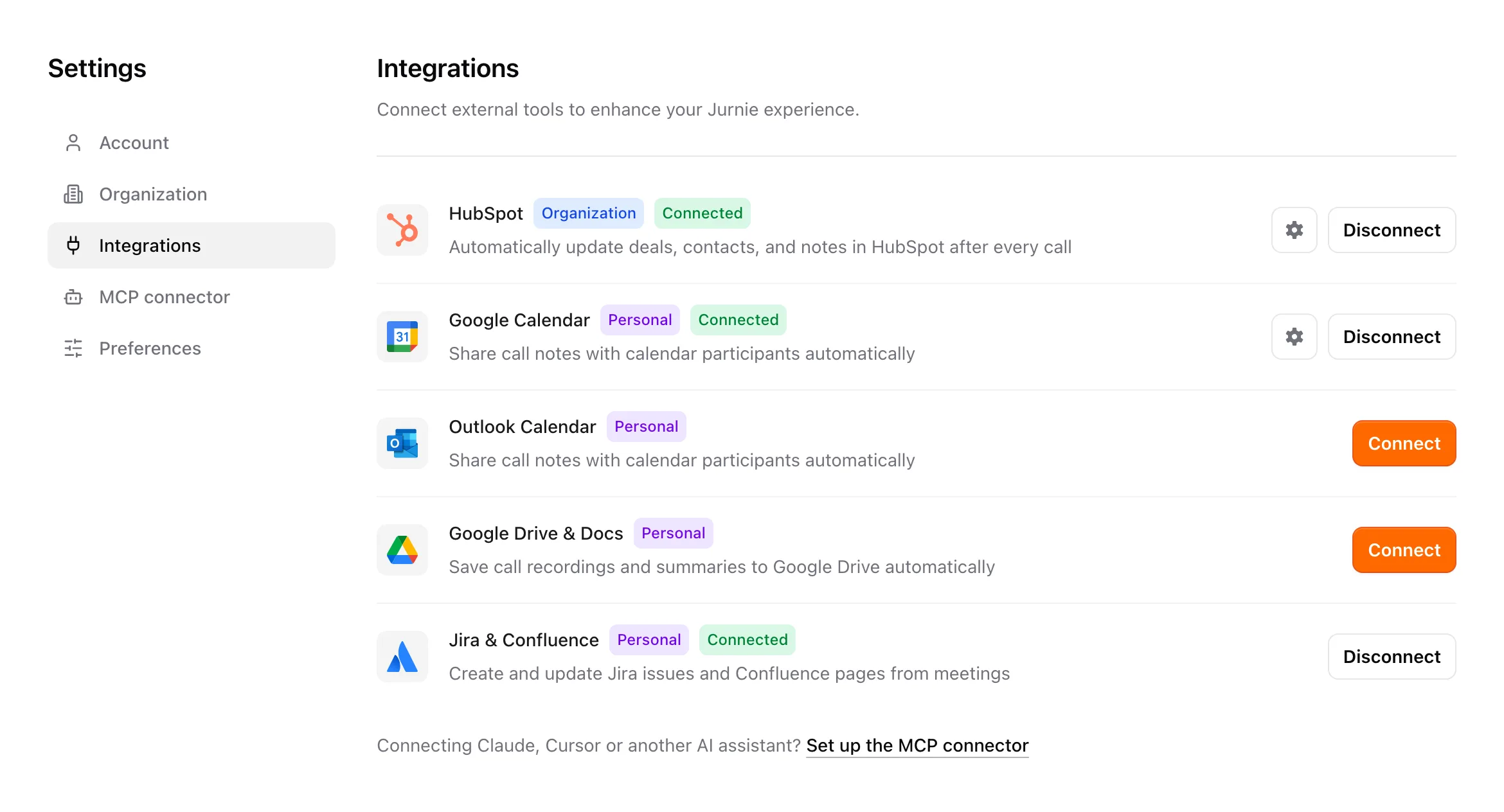
Tools marked Organization are connected once, by an admin, and work for everyone in your organization. Tools marked Personal are connected by each person who wants to use them, with their own account and permissions.
Admins: Only admins can connect or disconnect a tool marked Organization. Other members see Only admins can manage this integration.
What connecting does
Ask Jurnie and your agents can look things up in a connected tool and propose changes there, such as a note on a deal or a new issue. Nothing changes in another tool until someone approves it: each change appears as a card you can edit first, and the tool is only updated when you click Approve.
See Agents: follow-up after your meetings and Let Ask Jurnie make changes for you.
Disconnect a tool
On Integrations, click Disconnect next to the tool and confirm. Ask Jurnie and agents stop using it. Anything already changed in the tool stays there.
Tip: Your calendar is connected on the same page; see Connect your calendar. To read your meetings from Claude, ChatGPT or another AI assistant, see Use Jurnie from Claude, ChatGPT and other AI tools.
Last updated October 3, 2026