No articles match “”.
Try fewer or different words.
Browse topics
Capture an online meeting
Use the Jurnie desktop app to take notes in Zoom, Teams, Google Meet and other calls, without anyone joining the call.
The Jurnie desktop app captures an online meeting from your own computer. It listens to your microphone and to your computer's audio, so it hears everyone in the call, even when you wear headphones. Nothing joins the call, and it works with any meeting app. You need the desktop app for Mac or Windows: see Install the desktop app.
Start taking notes
When a meeting app starts using your microphone, Jurnie shows a Meeting detected notification in the corner of your screen, with the app's name. Click Start Note Taking.
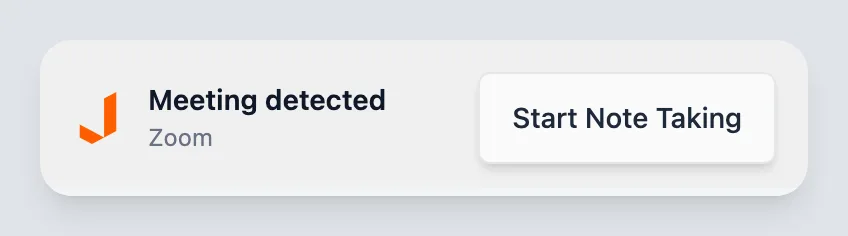
The notification appears for common meeting apps, such as Zoom, Microsoft Teams, Slack and Webex, and for calls in your web browser, such as Google Meet. Jurnie never starts on its own.
You can also start at any time:
- Click Start taking notes at the top of the Jurnie window.
- Or right-click the Jurnie icon in the menu bar (Mac) or system tray (Windows) and choose Start Note Taking. A plain click on the icon opens Ask Jurnie instead.
To stop the notifications, turn off Auto-detect meetings in Settings → Preferences.
While Jurnie takes notes
The controls sit at the top of the Jurnie window:
- Pause and Resume. Nothing is captured while Jurnie is paused.
- Finalize ends the meeting and starts the summary.
- Discard deletes the meeting and everything captured so far, without asking first. It can't be undone.
- The microphone menu. Its icon fills as Jurnie hears you. Pick another microphone here if the wrong one is in use.
- The sharing menu sets who can see the meeting once it's processed. See Share a meeting.

When the Jurnie window isn't in front, a small Jurnie badge floats on your screen. It's orange while Jurnie takes notes and gray while it's paused. Click it to open Jurnie, or drag it out of the way. To hide it, turn off Show meeting indicator in Settings → Preferences.
When the meeting ends
Click Finalize, or right-click the Jurnie icon in the menu bar or tray and choose Finalize Meeting. The meeting shows as Processing under Your meetings on Home while Jurnie works on the transcript and summary.
With Auto-detect meetings on, Jurnie shows a Meeting ended notification with a Finalize button after you leave the call. If you don't finalize, Jurnie pauses about two minutes later and tells you with Jurnie auto-paused, so nothing said after the meeting is captured. Finalize then, or click Resume to carry on.
Tip: With your calendar connected, the meeting takes its title and participants from the calendar event that's under way. See Connect your calendar.
Note: A meeting captured in the desktop or phone app can be up to four hours long. For a longer session, such as a full-day workshop, finalize and start a new meeting before then.
Not at your computer? Invite Jurnie to the meeting instead. If something went wrong, see A meeting wasn't captured.
Last updated October 3, 2026