No articles match “”.
Try fewer or different words.
Browse topics
Share a meeting
Share a meeting with people, a teamspace, your whole organization or anyone with the link, and choose who can view or edit it.
By default, a meeting you capture is private to you unless you share it. Use Share at the top of the meeting to add people, give a teamspace or your whole organization access, or turn on a public link.
Share with people
- Open the meeting and click Share.
- In Add people by name or email, type a name or an email address and pick the person from the list. Click the empty field to see the meeting's calendar participants. To add someone who isn't in the list, type their full email address.
- People are added with View. To give someone in your organization Edit, click View next to their name and choose Edit.
- Leave Notify by email on to email the people you just added.
- Click Save.
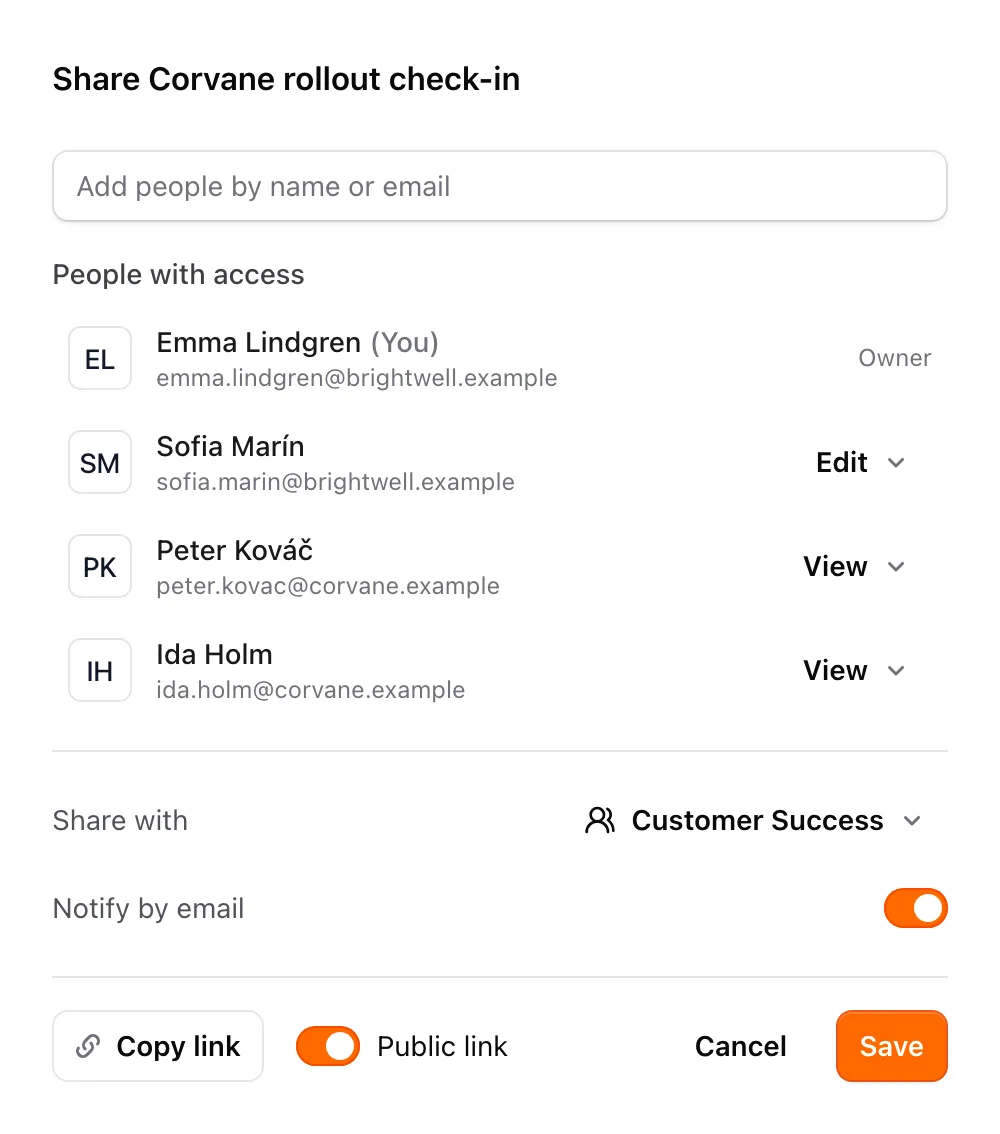
What each level allows:
- View: they read the summary and transcript on a read-only page, after signing in with the email address you shared with. The meeting isn't added to their meeting list; they open it from the email, so leave Notify by email on, or send them the link from Copy link.
- Edit: they open the meeting in Jurnie and can work on it, including adding and removing people. Only people in your organization can get Edit; people outside it can only view.
To remove someone, open the menu next to their name and click Remove, then Save.
The owner is always listed first.
Share with a teamspace or your organization
The Share with menu at the bottom of the dialog sets who else in your organization has access:
- Only people invited: just the people listed above.
- A teamspace, listed by name: every member of that teamspace can open and edit the meeting, and it's listed on the teamspace's page. You can pick teamspaces you belong to, one per meeting. See Teamspaces.
- Anyone at your organization: everyone in your organization can open and edit the meeting.
To change this without opening the dialog, click the arrow next to Share. You can also change it from the meetings list.
However a meeting is shared, only its owner can delete it.
Share a public link
Turn on Public link to let anyone with the link read the summary and transcript, without signing in. Click Copy link to copy it. While Public link is on, the Share button shows a globe.
The public link works alongside the other settings: a meeting can be in a teamspace and have a public link at the same time. Without it, the copied link only opens for people who already have access.
People who open a shared meeting without being signed in see a panel inviting them to sign up for Jurnie. Signed-in people who can edit the meeting are taken straight to it in Jurnie.
Note: Only the meeting's owner can change Share with and Public link. A meeting that hasn't taken place yet can't be shared.
Tip: To share every meeting you capture with a teamspace automatically, see Teamspaces. Ask Jurnie can also add people or a teamspace for you, after you approve it. See Let Ask Jurnie make changes for you.
Last updated October 3, 2026