No articles match “”.
Try fewer or different words.
Browse topics
Let Ask Jurnie make changes for you
Ask Jurnie can rename or share a meeting, fix a name, change your settings and more, but only after you approve each change.
Ask Jurnie can change things in Jurnie for you, but never on its own: each change appears as a card in the chat, and nothing happens until you approve it.
Approve, edit or reject a change
- Ask in plain words, for example "In yesterday's meeting, Corvane is spelled Corvain. Fix it" or "Share this meeting with ida.holm@corvane.example".
- Jurnie shows a card with the action's name, one line on why, and the values it will use.
- Click Approve to make the change, or Reject to drop it. To adjust a value first, click Edit, change it, then Approve.
- While cards are waiting, a bar above the message box counts them, with Approve all and Reject all to handle them in one go.
Afterwards, the card shows Completed, or Failed with the reason.
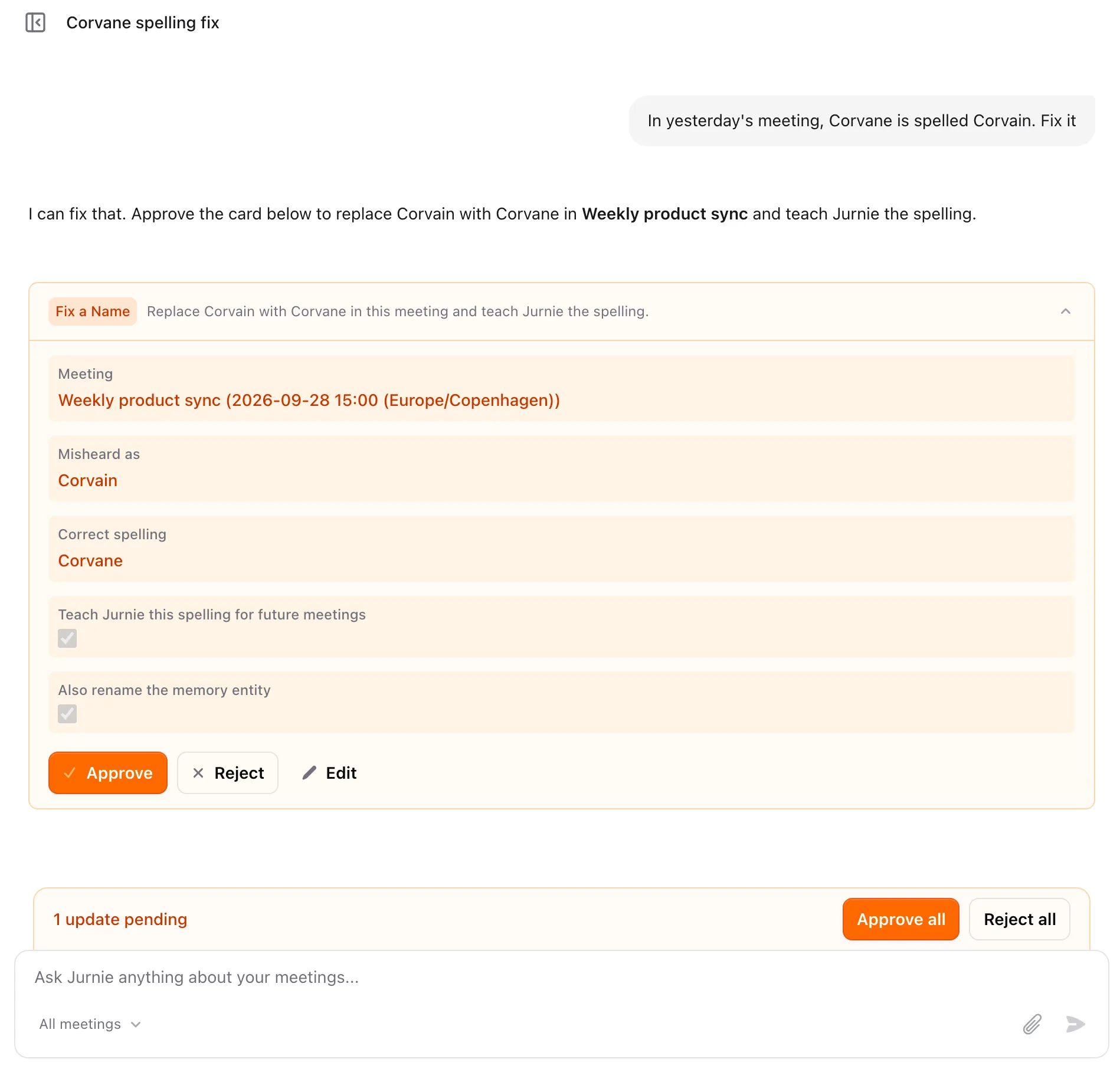
What Ask Jurnie can change
It can also just tell you how things are set up, such as your settings, agents, labels or upcoming meetings.
Meetings you can edit
- Rename a meeting, archive it, change its labels, or switch its summary template, which writes a new summary.
- Fix a misheard name and teach Jurnie the spelling. See Fix a misheard name.
- Rename a speaker, or write the summary again.
- Share a meeting with people by email (view or edit; edit only for colleagues in your organization), or with a teamspace if it's your meeting. The people you add get an email unless you untick it on the card.
Upcoming meetings
- Have Jurnie capture a meeting on your calendar, or cancel it.
- Turn Automatically join meetings on or off for every future meeting with a link.
Your own settings
- Your Jurnie Language, default summary template, email notifications, news emails and mobile push notifications.
- Whether each agent runs on your meetings, and whether you're emailed when it finishes.
Vocabulary and memory
- Add a word to your organization's vocabulary, with the ways it gets misheard.
- Merge two entries in memory, change an entry's type, or split one in two. See Rename, merge or correct what Jurnie remembers.
Your organization (admins only)
- Company name, Custom AI Instructions, default language for new members and default summary template.
- Create a label. Anyone can still create labels from Add label on a meeting's page; see Find a meeting.
Connected tools
Changes in tools you've connected, such as HubSpot or Jira, go through the same cards.
What stays in Settings
Some changes are too sensitive for a chat, so Ask Jurnie leaves them to you: your name, password and API keys, closing your account, creating or editing agents, and connecting or disconnecting integrations. Admins turn memory and API access on or off in Settings → Organization, not in a chat.
Note: Ask Jurnie can only change what you could change yourself in the app. A meeting you can't edit, or an admin setting if you're not an admin, is out of its reach.
Last updated October 3, 2026