No articles match “”.
Try fewer or different words.
Browse topics
The Jurnie API
Create API keys so your own tools and scripts can read your meetings, summaries and transcripts through Jurnie's read-only API.
The Jurnie API lets your own tools and scripts read what you can see in Jurnie: your meetings with their summaries and transcripts, your teamspaces and, when memory is on for your organization, what Jurnie remembers. It's read-only. Each API key belongs to one person and sees exactly what that person can see.
Turn on API access
Admins: API access is turned on for each organization by Jurnie. To turn it on or off for yours, email support@jurnie.ai.
Until it's on, the API keys tab doesn't appear in Settings. Turning it off later pauses every key until it's turned back on; no key is deleted.
Create a key
- Click your name at the bottom of the sidebar, then Settings, and open API keys.
- Click Create API key.
- Give the key a name, such as "Reporting script", and click Create key.
- Copy the key and store it somewhere safe. You won't be able to see it again.
- Click Done.
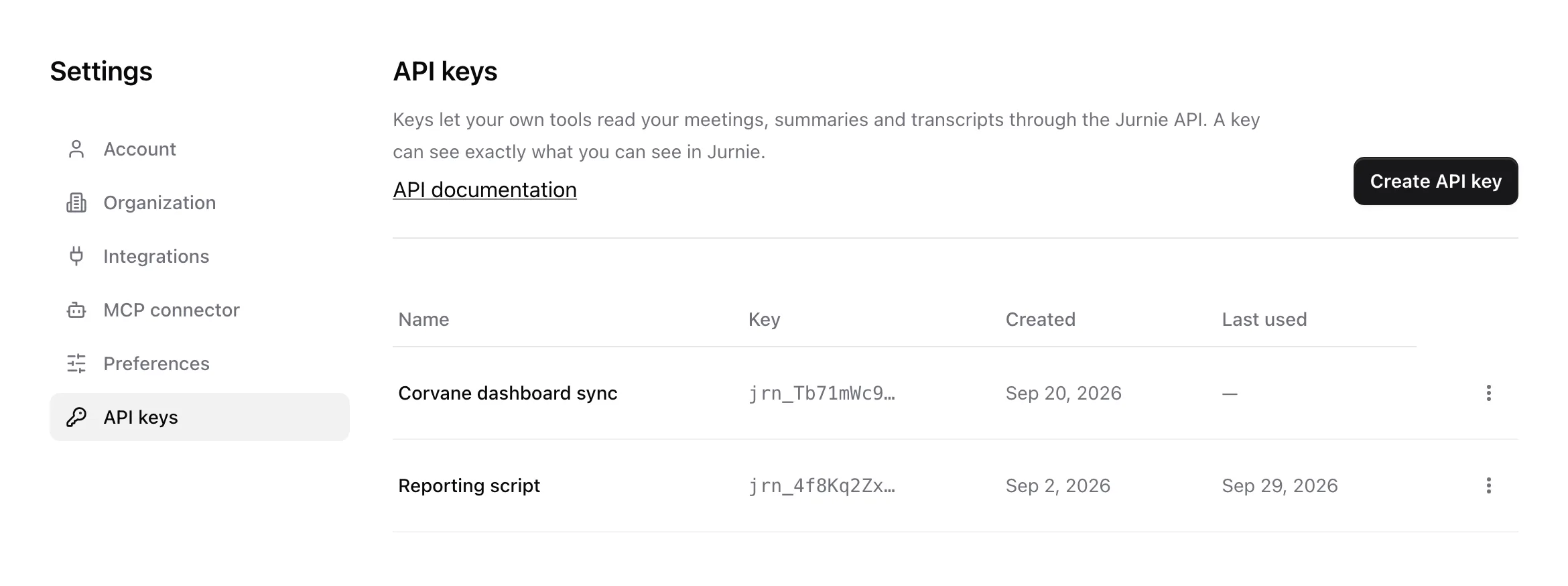
Keys start with jrn_. You can have up to 10 active keys.
Use a key
Send the key as a bearer token in the Authorization header. For example, to list your meetings:
curl https://app.jurnie.io/api/v1/meetings/ \
  -H "Authorization: Bearer $JURNIE_API_KEY"
Click API documentation on the API keys tab for every endpoint and field. The documentation is public, at https://app.jurnie.io/api/v1/docs/, so you can read it before you have a key.
Each key can make 600 requests an hour. Every response carries X-RateLimit-Limit and X-RateLimit-Remaining headers so your script can slow down in time.
Revoke a key
In the list, open the menu at the end of the key's row, click Revoke and confirm. Anything using the key stops working immediately, and this can't be undone. The Last used column helps you spot keys nobody uses any more.
A key also stops working if its owner's account is deactivated.
Tip: To ask an AI assistant such as Claude about your meetings, you don't need a key. See Use Jurnie from Claude, ChatGPT and other AI tools.
Last updated October 3, 2026