No articles match “”.
Try fewer or different words.
Browse topics
How Jurnie remembers
Jurnie builds a memory of the people, companies, projects and topics in your meetings, and every part of it leads back to a meeting.
After each meeting is processed, Jurnie reads the transcript and notes the people, companies, projects and topics that came up, and what was said about each. Over many meetings, those notes become a memory you can browse and ask about.
What Jurnie remembers
- People, companies, projects and topics. Each one gets its own page. See Pages for people, companies, projects and topics.
- What each meeting said about them. Jurnie keeps one note per meeting, linked to that meeting.
- How they relate, for example that someone works at a company or works on a project. Jurnie only keeps a relationship that a meeting states plainly, and leaves out guesses.
Demo meetings are never added to memory.
Every fact comes from a meeting
The profile of a person, company, project or topic is written from the notes Jurnie took in your meetings. The Meetings list on its page shows what each meeting said, so you can check where something came from. If a meeting is deleted, the notes Jurnie took from it go with it.
Who sees what
Memory follows meeting access: what Jurnie shows you about people, companies, projects and topics comes from meetings you can open.
- You only see the page of a person, company, project or topic if it comes up in at least one meeting you can open.
- The shared profile, named after your organization (for example Everyone at Brightwell), is written only from meetings shared with everyone in your organization.
- A teamspace's profile (for example In Customer Success) is written only from meetings shared with that teamspace, and only its members see it.
- Notes from a meeting are shown only to people who can open that meeting.
Where memory shows up
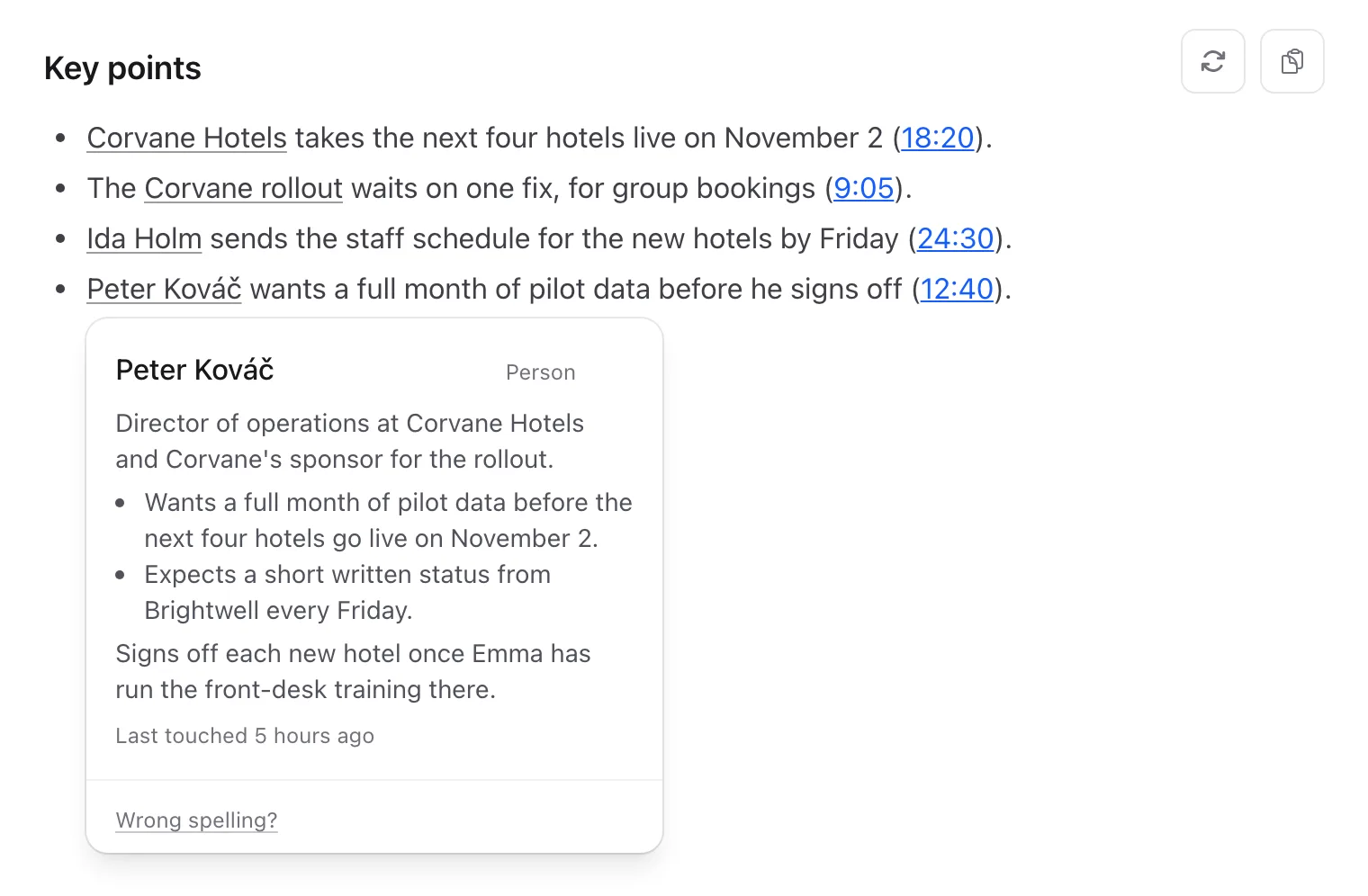
- In summaries. Names Jurnie remembers are underlined links. Hover one for a short card, or click it to open its page.
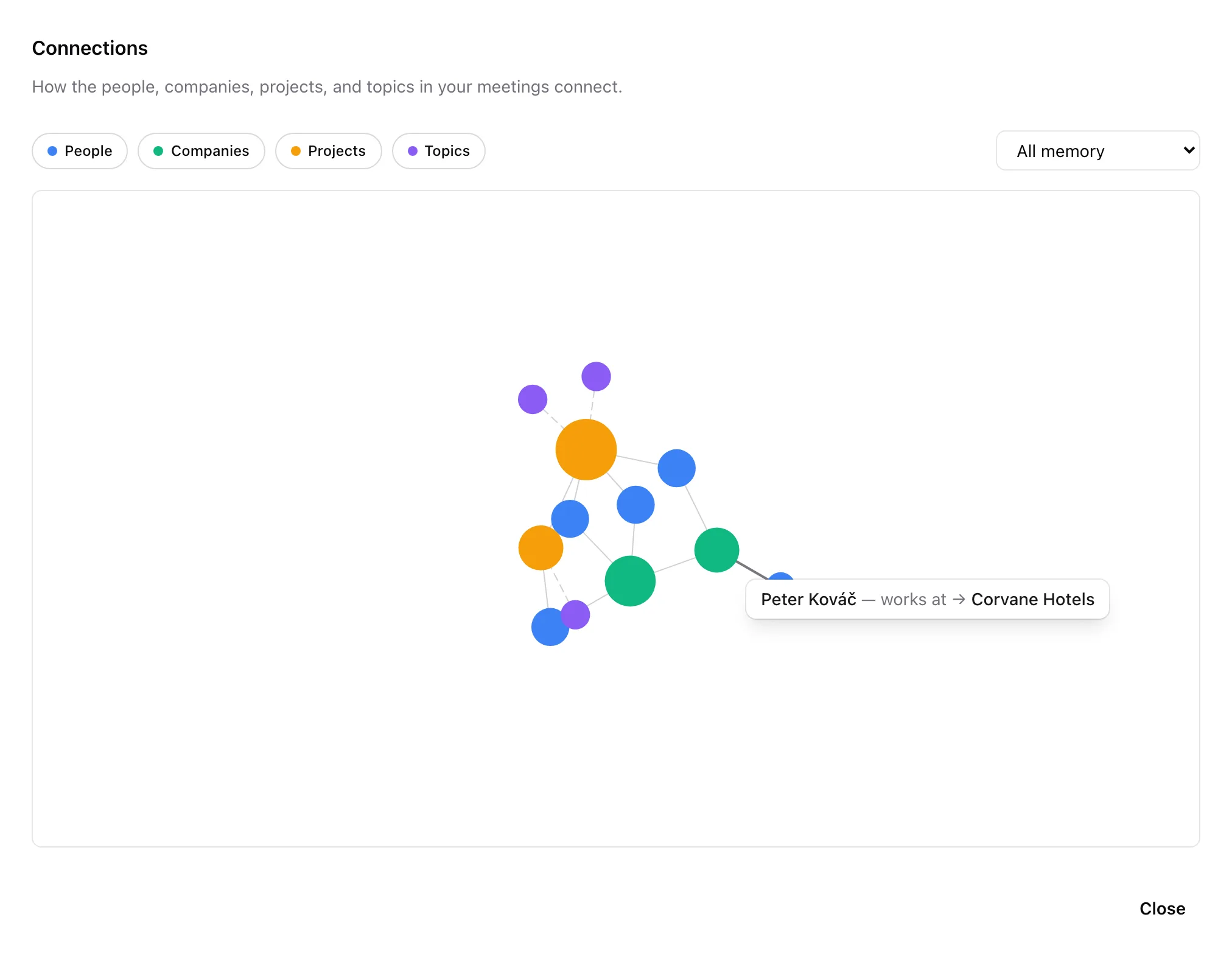
- In Connections. On Home, click Memory (the brain button next to the Your meetings heading) to see how the people, companies, projects and topics in your meetings connect. Filter by type, or pick one of your teamspaces from the All memory menu. Hover a line to see the relationship, and click a dot to open its page. On a teamspace's page, the same button shows that teamspace only.
- Before a meeting. See Prepare for a meeting.
- In Ask Jurnie, when you ask about people and companies. See Ask Jurnie about your meetings.
Admins: To stop building memory, go to Settings → Organization, turn off the Memory switch, click Save changes and confirm with Turn off memory. Jurnie stops adding to memory from new meetings and stops using it for everyone: in the app, in Ask Jurnie, and in connected tools and the API. Turning memory off doesn't delete what Jurnie already remembers, so turning it back on restores it. To have memory deleted, for the whole organization or for one person, an admin can email support@jurnie.ai.
Note: Memory needs an active subscription. If you don't see underlined names in summaries or the Memory button, memory may be off for your organization.
Last updated October 3, 2026