No articles match “”.
Try fewer or different words.
Browse topics
The transcript and speaker names
Read a meeting's transcript, jump to a moment from the summary, and change who a speaker is.
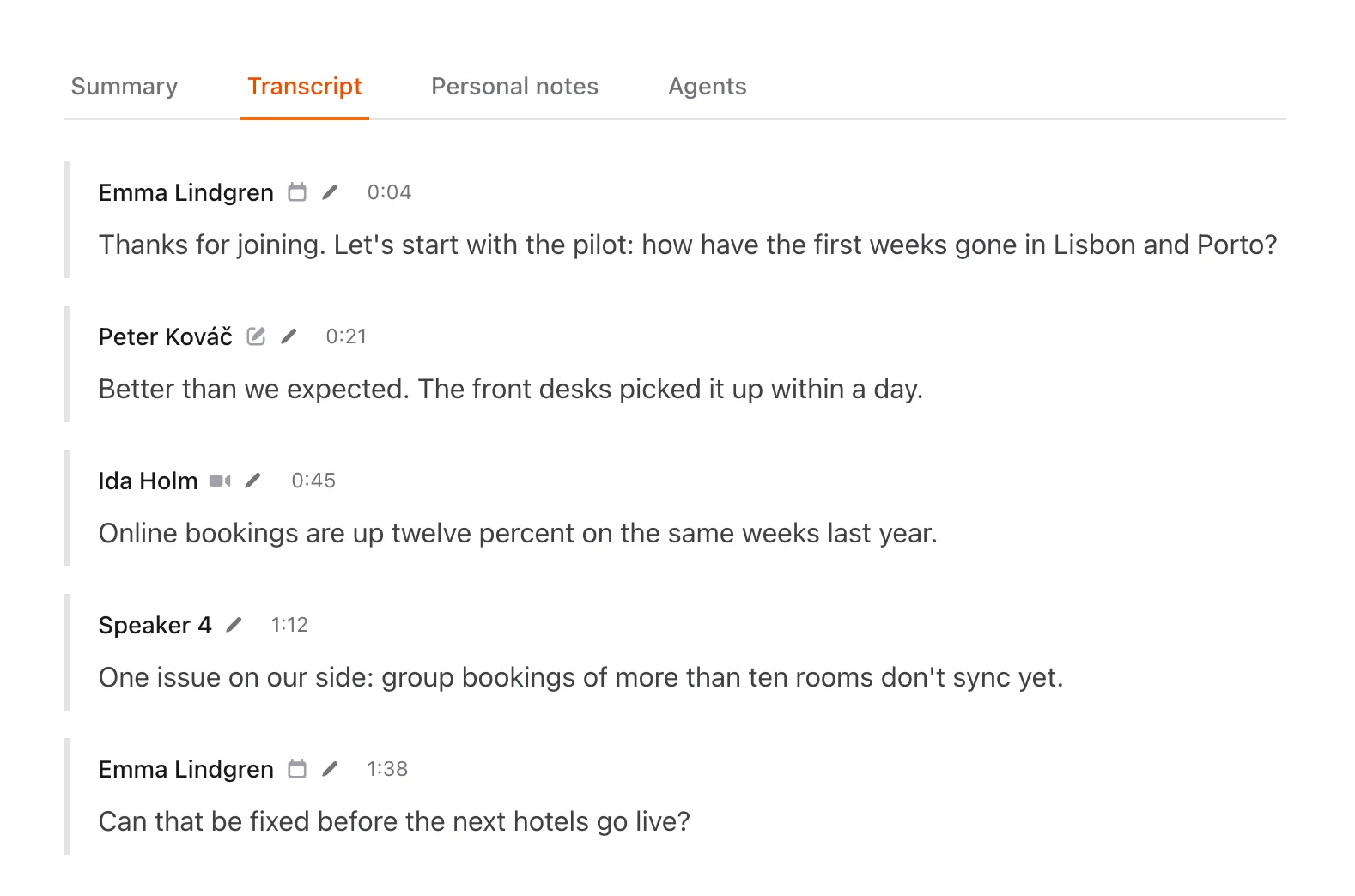
The Transcript tab on a meeting's page shows everything that was said, passage by passage, with the speaker's name and the time into the meeting. Jurnie detects the language that was spoken and writes the transcript in it.
To jump to a moment, click a timestamp in the summary: the Transcript tab opens at that passage and highlights it.
You can't edit the transcript's text. If Jurnie misheard a name or a word, use Fix a misheard name.
How Jurnie names speakers
Jurnie puts a name on a speaker only when it has good evidence, for example when they introduce themselves or someone addresses them by name. Otherwise it uses a role, such as "Client" or "Host", or a number, such as "Speaker 1". It doesn't guess.
A small icon after some names tells you where the name came from. Hover it to see:
- You selected this person: someone picked them by hand.
- Verified by calendar: matched by email address to someone on the calendar invite or in your team.
- From the call — joined as …: the name a participant used to join the call. A call participant can be a shared laptop or a meeting-room system, so these are worth checking.
Change a speaker's name
- On the Transcript tab, click the speaker's name.
- In Edit speaker name, start typing. The list suggests matching people from your team (Team), the calendar invite (Invited) and, if Jurnie joined the call, its participants (In the call). Pick one, or choose Use "…" to save exactly what you typed.
- Leave Apply to entire conversation on to rename the speaker everywhere in this meeting. Turn it off to move only the passage you clicked to that person.
- Click Save.
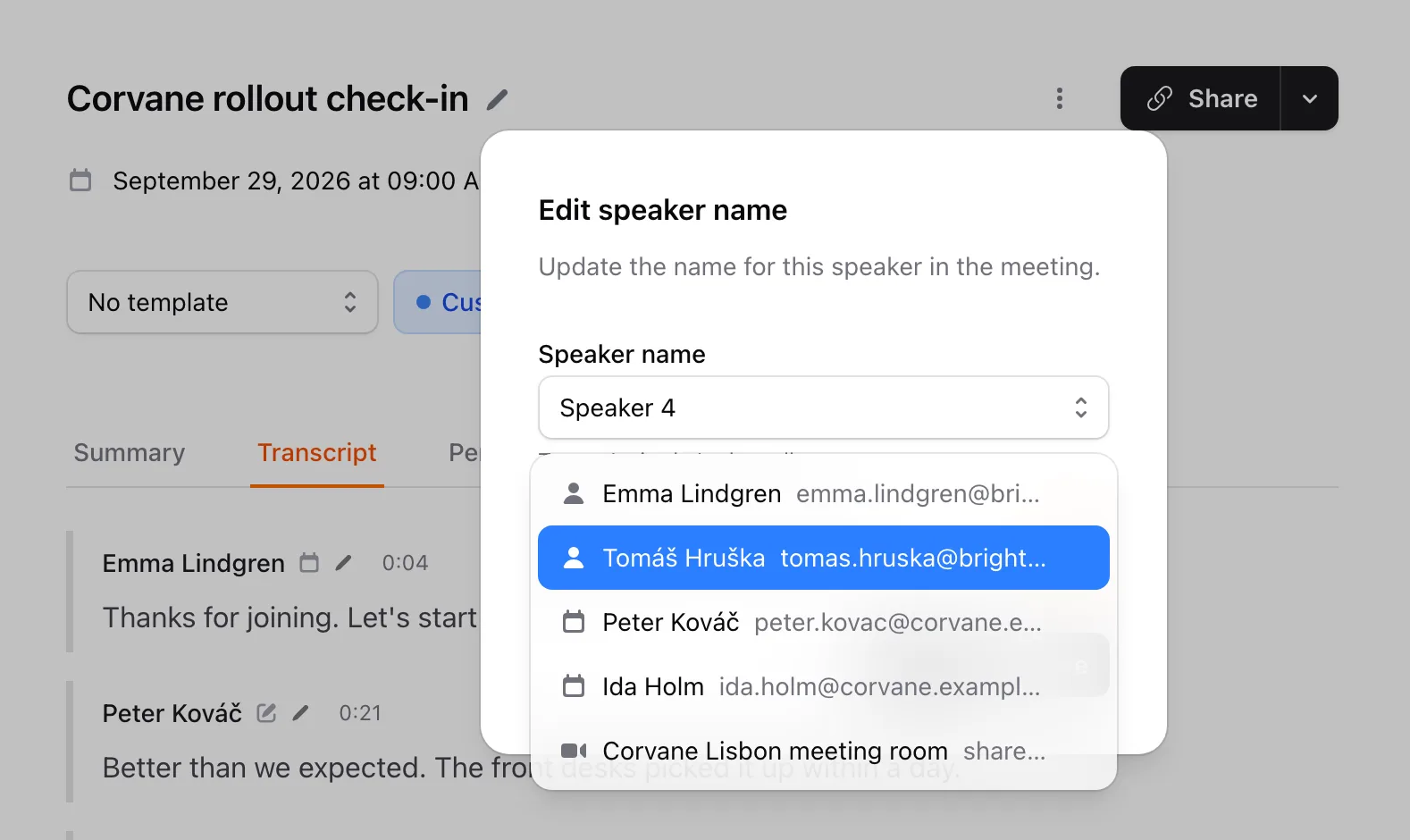
Picking someone from the list links the speaker to that person, and the dialog shows Linked to with their name. Anyone who can edit the meeting can change speaker names.
The summary isn't rewritten automatically. After you rename a speaker or pick someone for them, the Summary tab shows a bar saying This summary may be out of date. Click Regenerate to update it. When memory is on, Jurnie also reads the meeting again, so what it remembers is attributed to the right person. Moving a single passage to a typed name doesn't show the bar; use Refresh summary (the circular arrows on the Summary tab) instead.
Tip: One person split into two speakers, or one name on several people? See Too many speakers, or the wrong names.
You can also ask Jurnie to rename a speaker for you. See Let Ask Jurnie make changes for you.
Last updated October 3, 2026