No articles match “”.
Try fewer or different words.
Browse topics
Summary templates
Give your summaries a fixed structure, choose a template for a meeting, and set a default for yourself or your organization.
A summary template tells Jurnie how to lay out a summary: a description of the kind of meeting, and a list of sections, each saying what it should contain. Jurnie writes the summary under those sections and translates their titles into the summary's language, so one template works whatever language a summary is written in.
Create a template
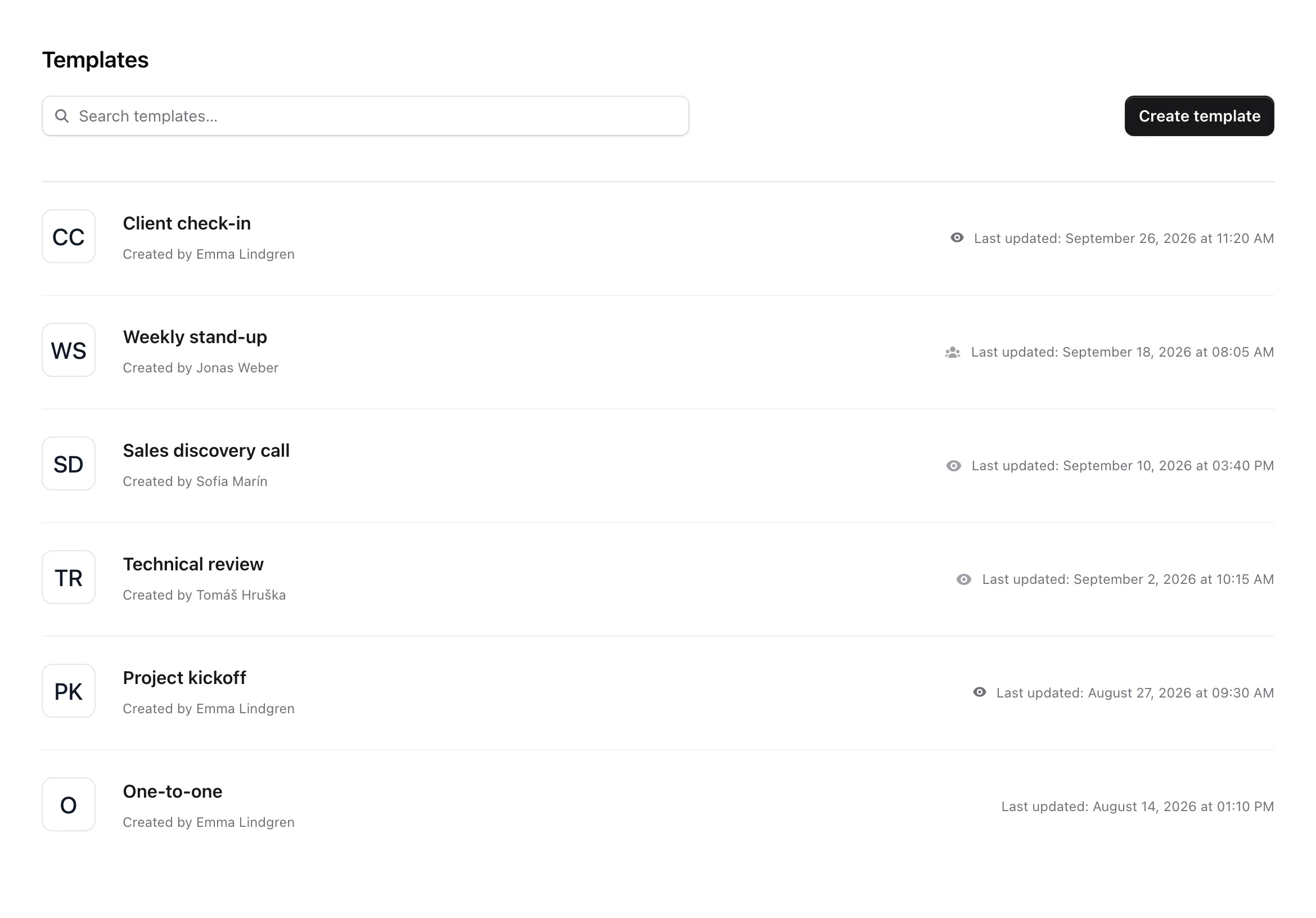
- Open Templates. It's in the sidebar or, if your organization uses memory, in the account menu (your name at the bottom of the sidebar).
- Click Create template.
- Pick a starting point: Blank template, or one of 20 ready-made templates such as Client discovery, Sales discovery, 1 to 1 or Stand-up. Click Use template or Start blank.
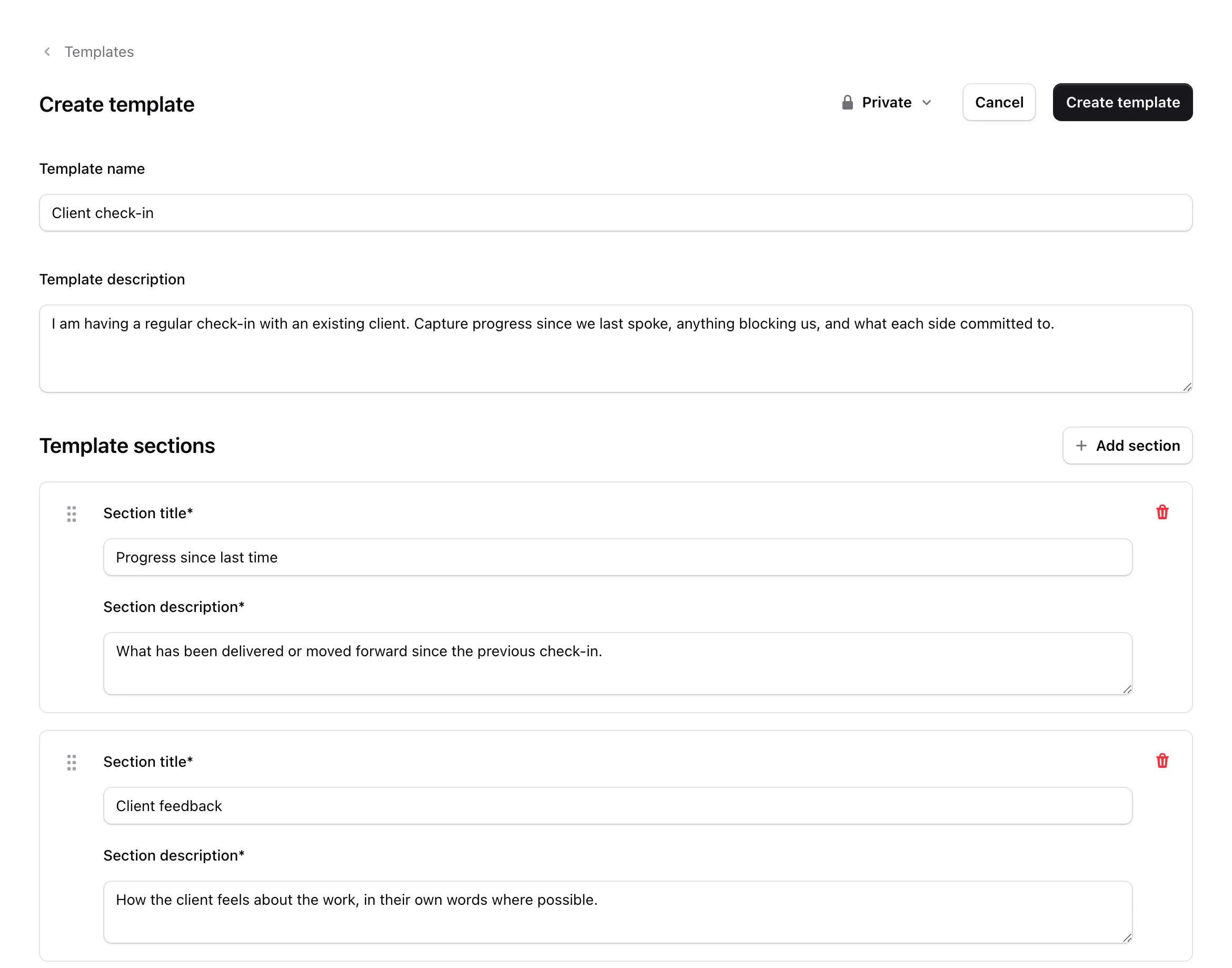
- Fill in the Template name and the Template description: what kind of meeting this is and what you want from the summary.
- Under Template sections, give each section a title and a description of what it should contain. Both are required. Use Add section for more, and drag sections to reorder them.
- Click Create template.
Who can see and edit it
A new template is Private: only you can see and use it. To share it, pick another visibility at the top of the template page before you save it, or later with the icon next to it on the Templates page:
- Private: only you.
- Anyone from your organization can view (with your organization's name): everyone in your organization can use it; only you can edit it.
- Anyone from your organization can edit: everyone in your organization can use and edit it.
Only the person who created a template can change its visibility or delete it (More options → Delete template). A template you can't edit opens as View only. To build on it, open More options and click Duplicate. That opens a private copy named "… (Copy)"; click Create template to save it.
Use a template for a meeting
On a meeting's page, the template menu sits above the tabs, next to the labels. Choose a template, or No template. Jurnie then rewrites the summary with it, replacing the current one. The menu only appears once there's at least one template you can use.
When you invite Jurnie to a live meeting, you can also pick a Summary template in the invite dialog. See Invite Jurnie to a meeting.
Set a default template
Go to Settings → Account → Default summary template, pick a template and click Save changes.
Admins: Settings → Organization → Default summary template sets the default for everyone in your organization.
For a new meeting's first summary, Jurnie uses the template chosen for that meeting, then the meeting owner's default, then the organization's default, and otherwise no template. Changing a default doesn't change summaries that already exist.
Note: Templates are hidden while your organization's subscription is inactive.
Last updated October 3, 2026