No articles match “”.
Try fewer or different words.
Browse topics
Invite Jurnie to a meeting
Send Jurnie's note taker into a video call, one meeting at a time or to every meeting on your calendar, and let participants know.
Jurnie can send a note taker, also called the Jurnie bot, into a video call through its meeting link, for example on Zoom, Google Meet or Microsoft Teams. It joins as a participant named after you, such as "Emma's Jurnie Note Taker", so everyone in the call can see it. It's handy when you're away from your computer. At your computer, the desktop app captures without anyone joining.
A meeting on your calendar
With your calendar connected:
- On Home, under Upcoming meetings, click Meeting options (⋮) on the meeting.
- Choose Invite Jurnie to this meeting.
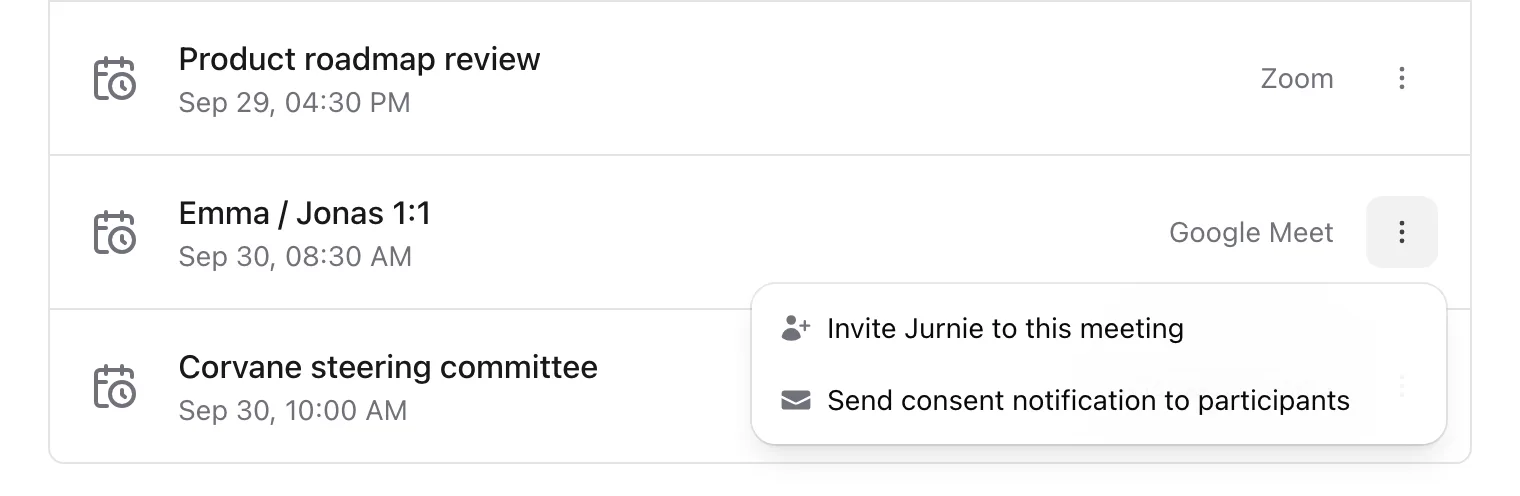
The meeting now shows a note-taker icon next to its title; point at it to see Jurnie will join this meeting. If the meeting moves, the note taker moves with it. To call it off, choose Cancel Jurnie for this meeting in the same menu. The menu is empty for an event without a meeting link.
A meeting that's already running
- On Home, click More options (⋮) next to Upcoming meetings.
- Choose Invite Jurnie to live meeting.
- Paste the call's link into Meeting URL. Summary template starts on your organization's default; pick another if you like.
- Click Invite Jurnie.
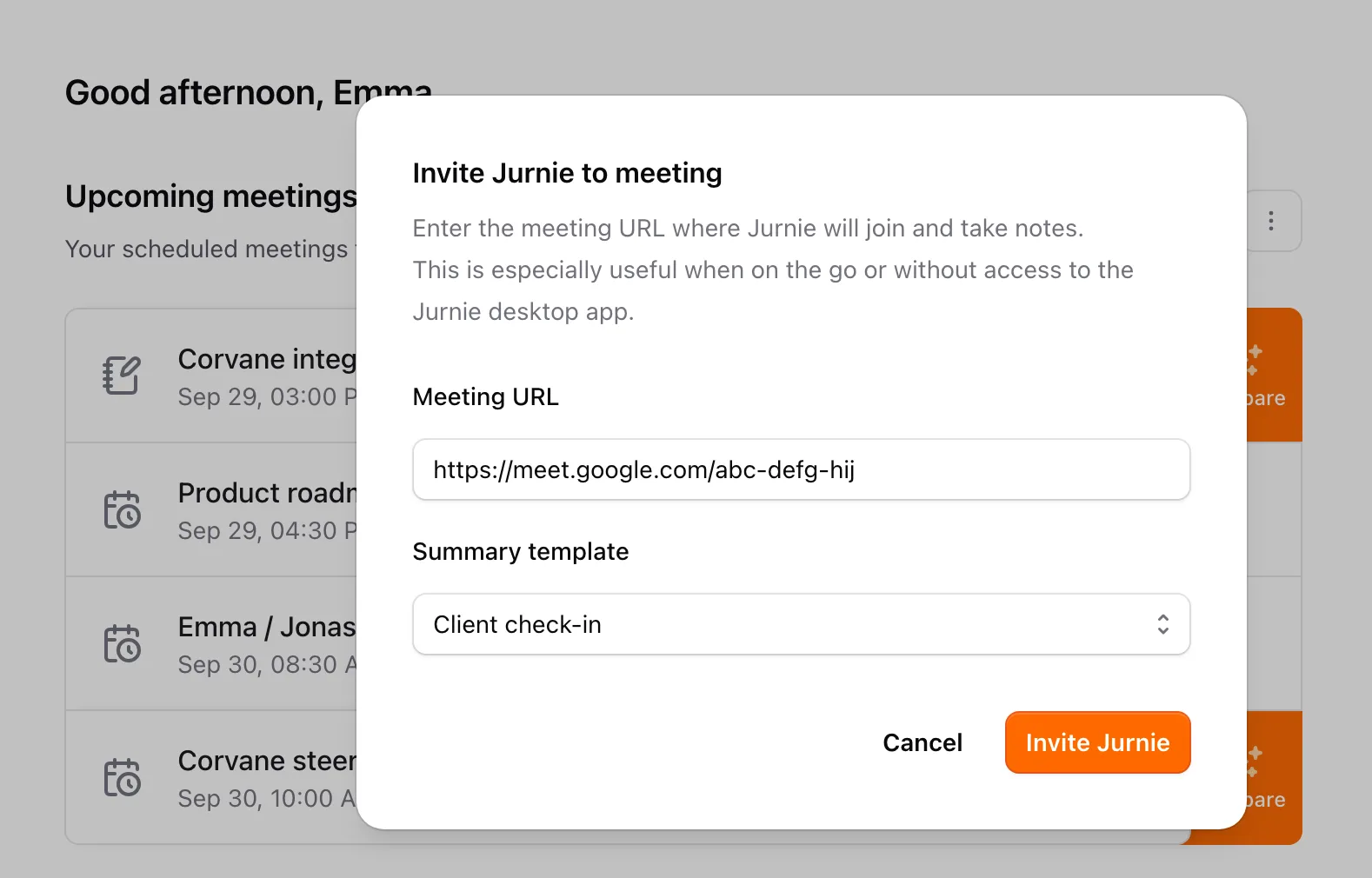
This works without a connected calendar.
Every meeting with a link
- Click More options (⋮) next to Upcoming meetings, then Calendar settings.
- Turn on Automatically join meetings and click Save.
The note taker then joins every upcoming meeting on your calendar that has a meeting link, including ones added later. If you turn the setting off, invite the note taker again to any upcoming meeting you still want it in.
Let participants know
In a meeting's Meeting options (⋮), choose Send consent notification to participants. Jurnie emails everyone invited who hasn't declined that you'll take notes in the meeting using Jurnie, with your email address for questions.
When the note taker joins
The meeting appears under Your meetings as soon as the note taker starts capturing. A meeting from your calendar takes the event's title and any personal notes you wrote beforehand. If the call has a waiting room or lobby, let the note taker in like any other guest.
Note: The note taker needs an active subscription.
Tip: If the note taker joins a call you're also capturing in the desktop app, you get two meetings. Pick one.
You can also ask Jurnie to send the note taker to a meeting; it asks for your approval first. See Let Ask Jurnie make changes for you. On your phone, tap the calendar button on the Jurnie tab and switch Jurnie on for a meeting.
Last updated October 3, 2026