No articles match “”.
Try fewer or different words.
Browse topics
Teamspaces
Give a team one place for its meetings, manage members and roles, and share your meetings into a teamspace automatically.
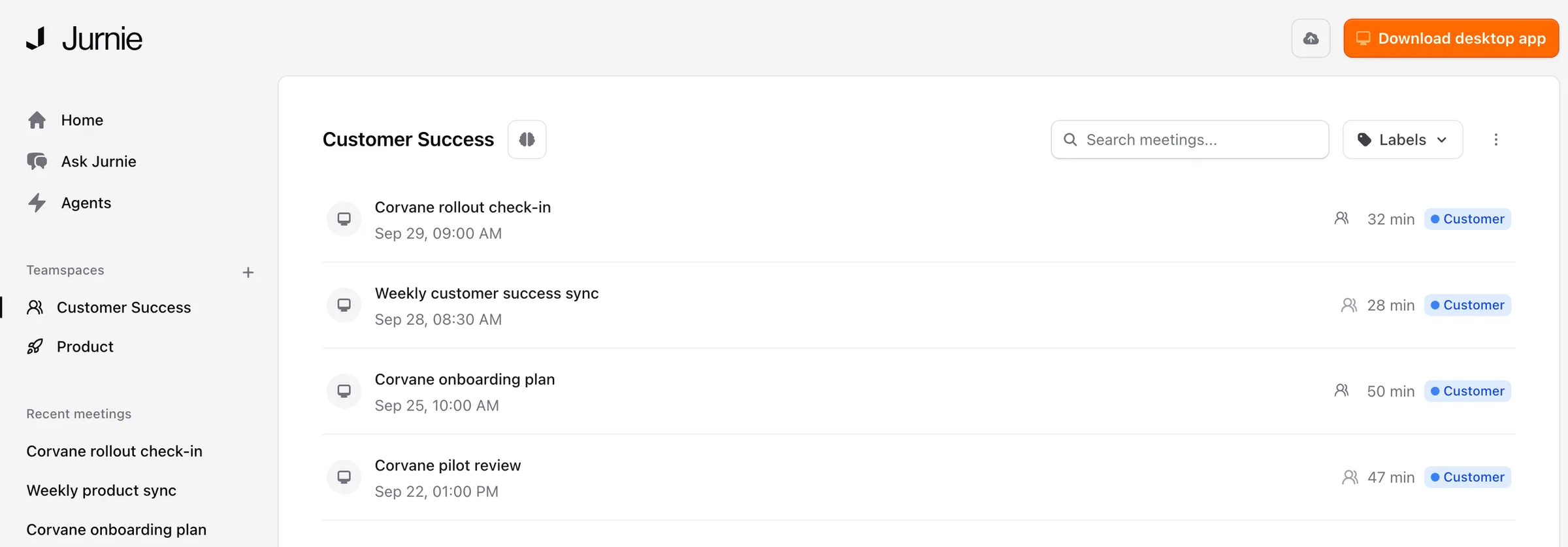
A teamspace is a shared place for a team's meetings. Every member can open and edit the meetings shared into it, and they're listed on the teamspace's page. Your teamspaces are in the sidebar under Teamspaces.
Create a teamspace
- In the sidebar, click + next to Teamspaces.
- Type a name and pick an icon.
- Under Members, search for people in your organization and add them. They're added as Member; switch anyone who should help manage the teamspace to Admin. You're an admin automatically.
- Click Create.
The people you add get an email. Anyone in your organization can create a teamspace. Teamspace admins are separate from organization admins: they manage only their teamspace.
Share meetings into a teamspace
The meeting's owner picks the teamspace under Share with in the share dialog, or from the arrow next to Share. You can share into teamspaces you belong to, and a meeting is in one teamspace at a time. See Share a meeting.
Members can open and edit the teamspace's meetings, but only a meeting's owner can delete it.
Share your meetings automatically
- Click your name at the bottom of the sidebar, then Settings.
- On Account, under Share meetings with a teamspace, choose the teamspace.
- Click Save changes.
From then on, each meeting you capture is shared with that teamspace once it has been processed, unless you've already shared it another way. Meetings you captured before aren't changed. On the desktop app, the capture controls have a sharing menu too, so you can choose something else for the meeting you're capturing.
If you leave the teamspace, this setting goes back to Don't share automatically.
Manage a teamspace
Open the teamspace's menu, from ⋯ next to its name in the sidebar or ⋮ on its page, and click Manage.
- Teamspace admins can rename it, change its icon, add and remove members and change roles on Details, then click Save. On Settings, Delete teamspace deletes it. Its meetings are no longer shared through it, but people invited to a meeting keep their access and public links stay on.
- Members can see who else is in the teamspace.
Leave a teamspace
Open the teamspace's menu, click Leave, then confirm. You lose access to the meetings shared with it, apart from your own and any that are shared with you another way, such as a direct invitation. A teamspace always needs an admin, so the last admin has to make someone else an admin first. If you're the only member, Jurnie offers Delete instead.
Note: Don't see Teamspaces in your sidebar? An admin can ask support@jurnie.ai to set them up for your organization.
Last updated October 3, 2026