No articles match “”.
Try fewer or different words.
Browse topics
Languages in Jurnie
Jurnie keeps the language of the app separate from the language it writes your summaries in, and admins set a default for the organization.
Jurnie has two language settings of its own, and they're independent. You can read the app in English and get your summaries in Danish, or the other way round.
| Setting | What it changes | Where |
|---|---|---|
| Language | The app's menus, buttons and messages | Settings → Preferences |
| Jurnie Language | What Jurnie writes for you: summaries, the titles it gives meetings, and the paragraph at the top of a pre-meeting brief | Settings → Account |
To open Settings, click your name at the bottom of the sidebar, then Settings.
Change the app's language
- Open Settings, then Preferences.
- Under Language & appearance, choose a Language: English, Dansk, Svenska, Slovenský or Español.
The app switches straight away. The choice is saved in this browser, or in the desktop app, so set it again on each computer you use. Until you choose, Jurnie follows your browser's language (in the desktop app, your computer's), or English if it doesn't offer that language.
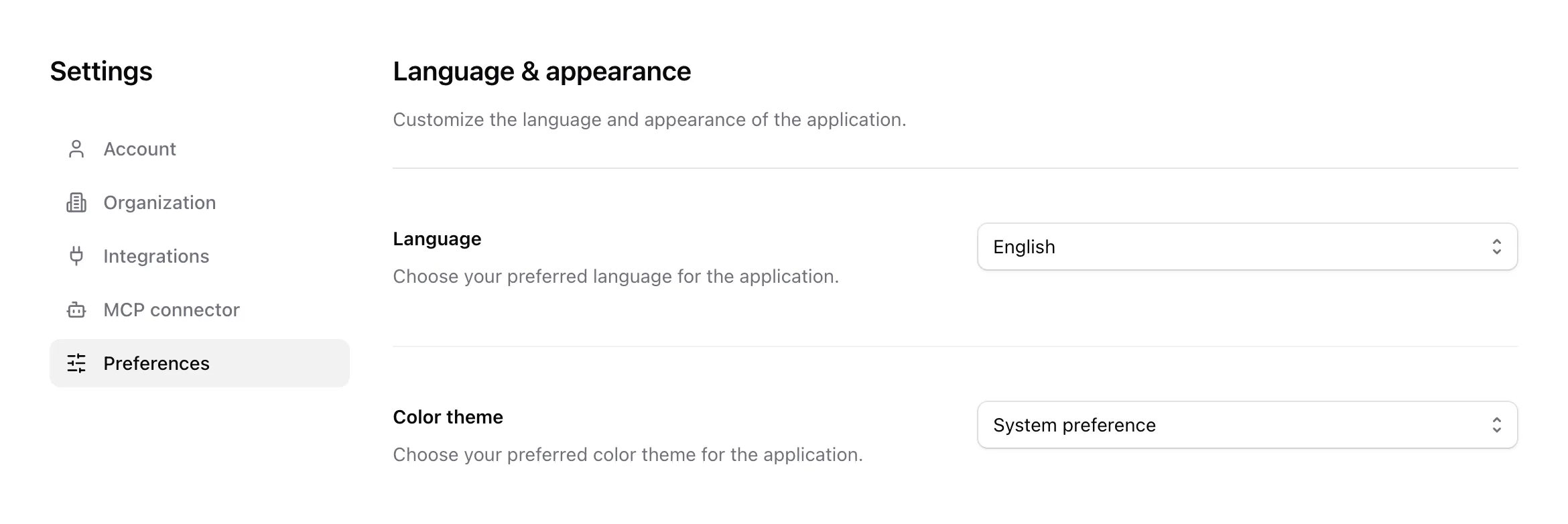
On your phone, open the Profile tab and tap Language.
Change the language of your summaries
- Open Settings. Account is the first tab.
- Choose your Jurnie Language: English, Dansk, Svenska, Slovenský, Español, Français, Norsk, Türkçe, Deutsch or Nederlands.
- Click Save changes.

New summaries are written in the new language, and the section titles of your template are translated to match. Summaries you already have stay as they are. To redo one, open the meeting and click Refresh summary, the circular arrow above the summary. This writes the summary again in your current Jurnie Language, replacing the old one.
When you sign up, Jurnie sets your Jurnie Language from your browser's language, or to English if Jurnie doesn't write in it. If you were invited, you start with your organization's default.
What these settings don't change
- Transcripts are in the language that was spoken. Jurnie detects it on its own, so there's nothing to set. To help it spell names and terms, see Teach Jurnie your words.
- Ask Jurnie answers in the language you write your question in, whatever language the meeting was in. Quotes from a transcript stay in the original language. To get an answer in another language, ask for it ("answer in Swedish").
Set the organization's default
Admins: In Settings → Organization, Default language sets the Jurnie Language that people you invite from then on start with. Members who already have an account keep their own. What Jurnie remembers about people, companies, projects and topics is written in the organization's Memory language, set on the same page, whatever each member's own Jurnie Language is. Click Save changes to apply it. See Organization settings.
Last updated October 3, 2026